 English
 Español
 Português (BR)
 Deutsch
 Français
 Italiano
 Türkçe
 Bahasa Indonesia
 Русский
 日本語
日本語 한국어
한국어 Українська
 Tiếng Việt
 Polski
 Nederlands
 ไทย
ไทย Română
 简体中文
简体中文 繁體中文
繁體中文 العربية
 Български
 Filipino
 हिन्दी
 اردو
اردو বাংলা
বাংলাHow to Stream Pre-Recorded Videos on YouTube 24/7 (2026)
Step-by-step guide to running a nonstop YouTube live stream from pre-recorded videos: three methods compared, settings, the 12-hour replay limit and fixes.
- youtube live
- 24/7 streaming
- pre-recorded video
- obs
- live streaming
- streaming setup
Disclosure: remover.bg has a friendly relationship with the StreamHouse team. The steps below work with any encoder; StreamHouse is shown as the cloud option.
Quick answer
To stream pre-recorded videos on YouTube 24/7, turn on live streaming in YouTube Studio, put your videos in a playlist, and send that playlist to YouTube on a loop with an encoder. You can run the encoder yourself (OBS on a computer or a rented server that never switches off) or use a cloud tool such as StreamHouse, which keeps the stream running from its own servers so your computer can be off. Use videos you own or have a license for, keep every file at the same resolution and frame rate, and stream at 1080p30 with 2-second keyframes.
Is it allowed to stream pre-recorded videos on YouTube Live?
Yes. YouTube Live accepts any video that an encoder sends, including files you recorded earlier. Thousands of channels run nonstop streams this way: lofi and music radios, sleep and rain sounds, news rebroadcasts, gaming reruns and church services. Two rules apply to every one of them. The content must be yours or licensed to you, because Content ID checks live streams too, and the title and description must not mislead viewers about what they are watching.
What you need before you start
- A channel with live streaming enabled. In YouTube Studio, verify your channel with a phone number and request live streaming. The first time, YouTube can take up to 24 hours to switch it on.
- Videos you have the rights to. Music, footage and artwork you created or licensed.
- Matching files. Every video in one stream should share the same resolution, orientation and frame rate, for example 1920×1080 at 30 fps. Mixing formats is the most common reason a looped stream stutters or drops.
- A way to keep the stream running. That is the encoder: one of the three methods below.
Three ways to run a 24/7 YouTube stream
- OBS on your computer — Where it runs: your own PC or Mac · Computer must stay on: yes, all the time · Setup: about an hour · Video encoding: live, the whole time, on your CPU or GPU · If the stream drops: you restart it yourself after a crash · Running cost: free software, plus power and internet · Best for: testing, short runs
- OBS on a cloud server — Where it runs: a rented server (VPS) you manage · Computer must stay on: no, but the server must · Setup: several hours, needs server skills · Video encoding: live, the whole time, on the server · If the stream drops: you need your own watchdog script · Running cost: a monthly server bill · Best for: people comfortable with Linux
- Cloud 24/7 tool (StreamHouse) — Where it runs: the service's servers · Computer must stay on: no · Setup: a few minutes · Video encoding: once, when you upload · If the stream drops: relaunched automatically · Running cost: from $19/month for one 1080p stream · Best for: nonstop channels that run for months
Method 1: OBS on your own computer
This is the free way to start, and it is fine for a test or a weekend stream.
- Install OBS Studio and add a VLC Video Source. Add all your videos to its playlist and tick Loop Playlist.
- In YouTube Studio, open Create → Go live → Stream and copy the stream key.
- In OBS, go to Settings → Stream, choose YouTube and paste the key.
- In Settings → Output, set the encoder to H.264, the keyframe interval to 2 seconds and the audio to AAC. In Settings → Video, use 1920×1080 at 30 fps.
- Click Start Streaming, then check the preview in YouTube Studio.
The catch: the computer, OBS and your internet connection must stay on day and night. A Windows update, a power cut or a router restart ends the stream, and OBS does not restart itself after a crash.
Method 2: OBS on a cloud server
You rent a virtual server, install a desktop environment and OBS (or FFmpeg), upload your videos and run the same setup remotely. It removes your home computer from the picture, but you become the system administrator.
- The server needs enough CPU or a GPU to encode video nonstop.
- You manage updates, disk space, remote access and security yourself.
- You need your own script to restart the stream when it fails, or the channel stays offline until you notice.
This route makes sense if you already run servers. For most creators it is more work than the stream itself.
Method 3: A cloud 24/7 streaming tool (step by step with StreamHouse)
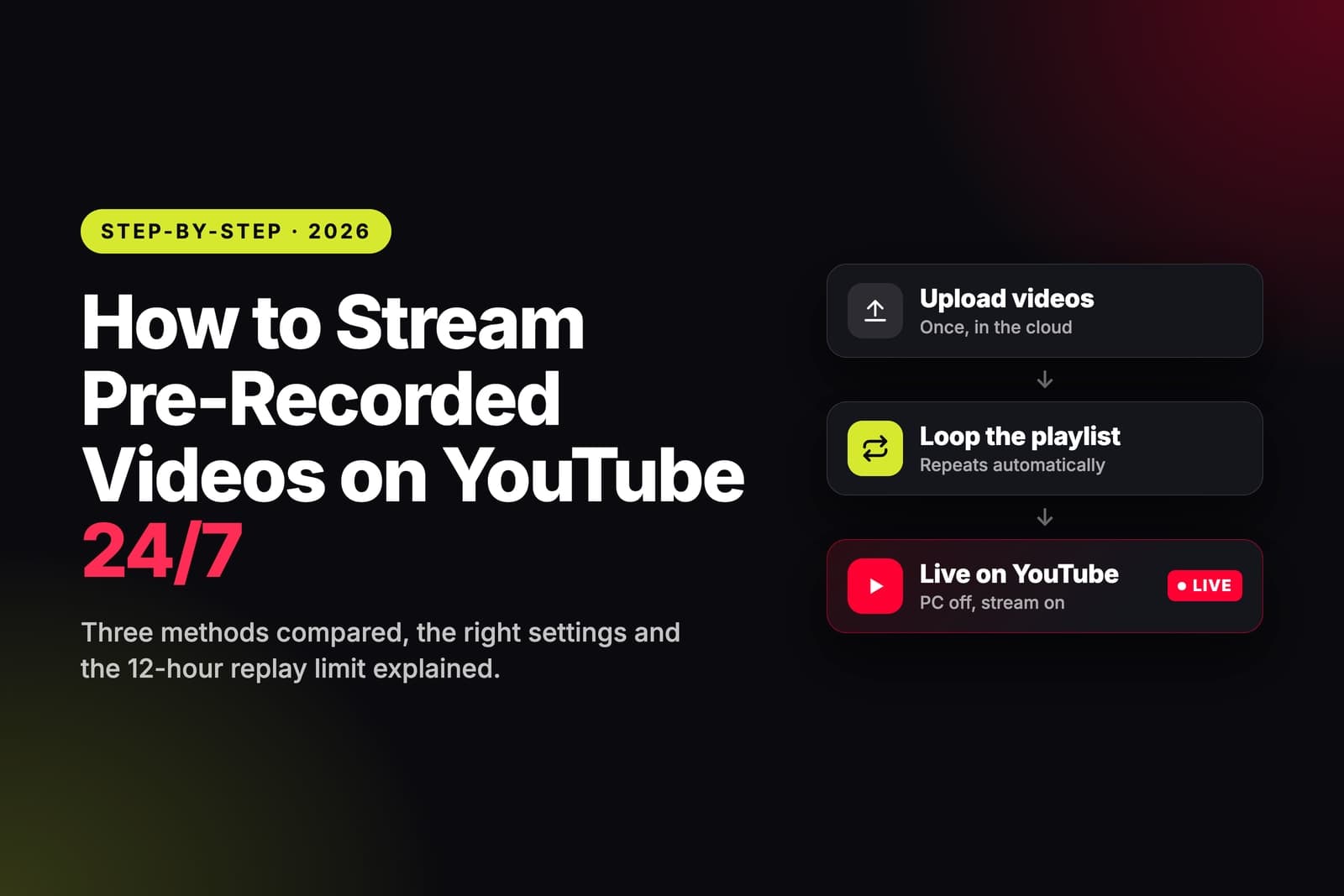
A cloud tool does the encoder's job for you. You upload once, and the service streams the playlist from its own servers. Here is the full setup with StreamHouse:
- Upload your videos. Each file is encoded once to H.264 and AAC, so there is nothing to convert and nothing is re-encoded while you are live.
- Build a playlist. Drag the videos into order. When the last one ends, the playlist starts again from the top.
- Connect YouTube. Sign in with Google and StreamHouse creates the YouTube broadcast for you, so there is no key to copy. If you prefer, paste a stream key from YouTube Studio instead.
- Set the YouTube details. Title, description, thumbnail, privacy (public, unlisted or private) and the made-for-kids answer, all from one screen.
- Start the stream and close your laptop. If a platform drops the connection, the stream is relaunched automatically.
Optional extras: a start and end time for the stream, sending the same stream to Twitch, Kick or other platforms at once, and team access for people who help run the channel. Plans start at $19/month for one 1080p stream with no hour cap.
Best settings for a 24/7 YouTube stream
- Resolution and frame rate: 1080p at 30 fps. It looks sharp and uses less bandwidth than 4K, which matters for a stream that never stops.
- Codec: H.264 video with AAC audio at 48 kHz.
- Keyframe interval: 2 seconds.
- Bitrate: around 4.5 Mbps is plenty for 1080p30 video that is mostly calm (StreamHouse uses this target for 1080p). Fast gameplay benefits from more.
- Latency: Normal latency gives the smoothest playback for viewers. Low latency only matters when you chat live with your audience.
- DVR: keep it on so viewers can rewind.
The 12-hour replay limit (and how to keep one)
YouTube only saves a live stream as a regular video when it runs for less than 12 hours. A stream that never ends therefore never gets a replay on your channel. If you want a saved copy, end the broadcast before it reaches 12 hours and start a new one. StreamHouse can do this for you with recording protection: you pick an hour from 1 to 11, it ends the first broadcast there so YouTube saves it, and carries on in a new broadcast without restarting the video feed. The saved video is unlisted by default, and the feature needs your YouTube channel connected rather than a pasted key.
Common problems and how to fix them
The stream says "No data" or keeps going offline
Your encoder stopped sending video. On a home computer, check sleep settings, updates and the internet connection. With a cloud tool, check whether the stream key was reset in YouTube Studio; an old key is refused.
The stream stutters when a new video starts
The files do not match. Re-export them all at the same resolution and frame rate (for example 1080p at exactly 30 fps).
YouTube blocked or muted the stream
Content ID found music or footage you do not have the rights to. Replace it with your own or licensed content; repeated claims can lead to live streaming restrictions on the channel.
Live streaming is not available on the channel
The channel is not verified yet, the 24-hour activation has not finished, or the channel had a live streaming restriction in the last 90 days.
FAQ
What is the difference between a YouTube Premiere and a 24/7 live stream?
A Premiere plays one uploaded video once, as a scheduled event, and then it becomes a normal video. A 24/7 live stream plays a whole playlist on repeat for as long as you want, and it stays live on your channel the entire time.
Can I stream pre-recorded videos on YouTube without OBS?
Yes. A cloud tool such as StreamHouse streams your uploaded videos to YouTube from its servers, so you need neither OBS nor a computer that stays on.
How much does it cost to stream 24/7 on YouTube?
YouTube does not charge you to go live. Your cost is whatever keeps the encoder running: electricity and internet for a home computer, a monthly bill for a server, or a subscription for a cloud tool (StreamHouse starts at $19/month for one 1080p stream).
Can a 24/7 stream earn money?
Live streams can earn from ads, Super Chat and memberships like regular videos, but only if your channel is in the YouTube Partner Program and the content meets its policies. Check YouTube's eligibility rules for your channel.
Can I send the same 24/7 stream to Twitch or Kick too?
Yes. With OBS you need a multistreaming plugin or service. StreamHouse can send the same stream to YouTube, Twitch, Kick, Rumble, Facebook and other platforms at once from the cloud.
Summary
Enable live streaming, prepare matching videos you own, and pick how the encoder keeps running. OBS on your computer is the free way to test the idea. A cloud server suits people who already manage servers. For a channel that should stay live for months without a computer at home, a cloud tool like StreamHouse is the simplest setup. To compare the cloud tools side by side, see the best 24/7 YouTube live streaming tools.