 English
 Español
 Português (BR)
 Deutsch
 Français
 Italiano
 Türkçe
 Bahasa Indonesia
 Русский
 日本語
日本語 한국어
한국어 Українська
 Tiếng Việt
 Polski
 Nederlands
 ไทย
ไทย Română
 简体中文
简体中文 繁體中文
繁體中文 العربية
 Български
 Filipino
 हिन्दी
 اردو
اردو বাংলা
বাংলাWhy Online Visa Photo Uploads Get Rejected
Your visa photo passed at the shop and failed online. The portal checks the file, not the picture: format, kilobyte range and pixel size, by its own numbers.
- visa-photo
- id-photo
- photo-upload
- file-size
- background
The photo looks correct. The head is centred, the wall behind you is plain, the shop that printed it said it was fine. Then the form rejects it without saying which rule it broke.
Often the fault is in the file, not the photography. Before anyone looks at the picture, the form checks what the picture does not show: the file's format, its weight in kilobytes, and its pixel dimensions or aspect ratio.
You can read each of those off your own file in a minute. But no two portals use the same numbers, so only your portal's specification counts.
Find the Portal's Own Photo Page First
Portals publish their photo requirements almost anywhere except next to the upload button: an instructions PDF, or a help page two clicks away. Work from that page, not a general passport guide.
The specs sit far apart:
- The US State Department's DV-2026 instructions ask for a JPEG, 600x600 pixels, square, 240 kB or less.
- India's e-Visa portal currently asks for JPEG, 10 KB to 1 MB, with height and width equal.
- Immigration New Zealand currently asks for a portrait JPG at 3:4, but its own two pages disagree on the rest: the acceptable-photos page says 512 KB to 3.14 MB, while its page on fixing photo upload errors says 500 KB to 3 MB and 900x1200 to 2250x3000 pixels. Aim inside the overlap.
Those figures were read on 17 September 2026, the DV set from the DV-2026 instructions as updated in February 2025. Each DV cycle publishes its own, and specs get revised, so use these to see how far portals differ, not as a checklist.
Three Faults, One Unhelpful Error
- Dimensions. Read width and height from the file's properties or your phone's photo info panel. Square means exactly square: 600x598 is not.
- Weight. The same panel gives the file size — check both ends of the range, not just the top.
- Format. A PNG renamed to
.jpgis still a PNG inside, and a validator that reads the file rather than the extension will reject it.
A photo off a recent iPhone may be a HEIC file, and every portal above that names a format names JPEG — so convert it first.
Landing Inside a Kilobyte Range
The rule that catches people out is the floor: India's e-Visa minimum is 10 KB, the UK's digital passport photo rules ask for at least 50KB, and New Zealand's floor sits around half a megabyte. A file squeezed hard to clear a ceiling elsewhere is now too small.
Change one setting first: JPEG export quality, re-exporting from the original rather than re-saving a compressed copy — each round trip throws away detail permanently. Aim for the middle of the range, not the floor.
Holding the Head Ratio When You Resize
Resizing and cropping are different operations, and confusing them quietly breaks a good photo. A resize scales everything together, so the proportion your head occupies survives. A crop changes it at once.
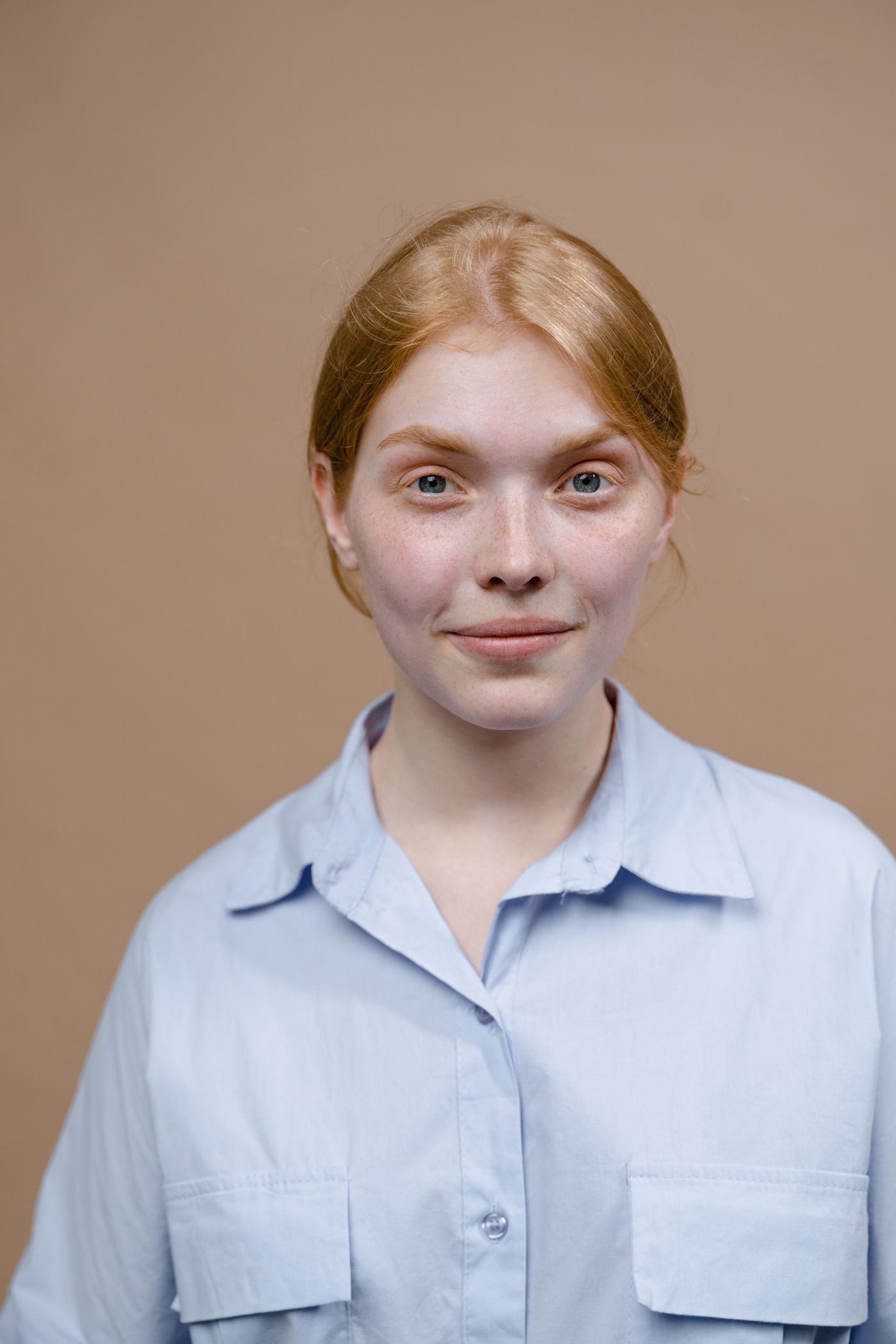
That proportion is itself a stated requirement: the DV-2026 instructions ask for a head 50 to 69 percent of the image's total height, chin to crown; Immigration New Zealand currently asks that your face cover 70% to 80%.
Where the portal expects a cropped file, work in this order: crop to its aspect ratio, watching the head proportion; resize to the pixel target; export inside the byte range. Some portals crop for you — GOV.UK says that if you take your UK passport photo on your own device, include head, shoulders and upper body and do not crop it: it will be cropped for you. If the ratio is badly off, re-shoot it at home.
The Background Rule Is Judged Separately
A photo can clear every byte check and still fail on the wall behind you. The DV instructions ask for plain white or off-white; India's e-Visa portal asks for a plain light coloured or white background, with no shadows.
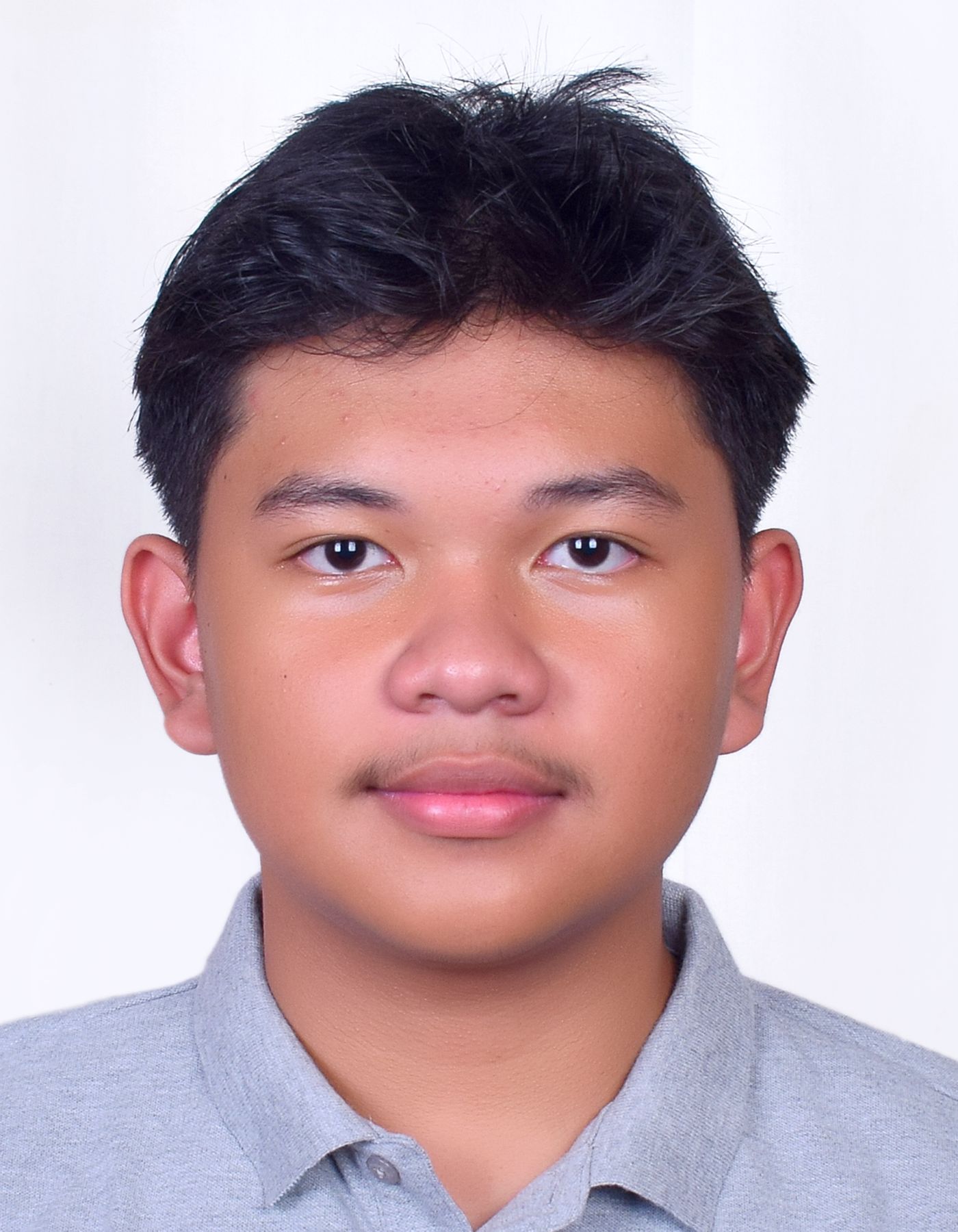
Read the portal's alteration wording before you edit anything. The UK's digital photo rules require the photo to be unaltered by computer software. Immigration New Zealand bans AI and other digital editing outright, and gives cropping your head and shoulders to place it on a plain background as an example. The DV instructions are blunter still: a photograph that has been manipulated in any way may make you ineligible. Where that wording appears, re-shoot against a plain wall instead.
That rules editing out for three of the four portals above; India's page is silent rather than permissive. Where no such rule applies — an employer headshot, a profile picture — remover.bg will lift the subject off a cluttered wall, put a flat white field behind the head and export a flattened JPG. Hitting the portal's exact pixel target and byte range is a separate step in your photo app. The same plain frame works for a CV or resume photo.
Before You Hit Submit
Check one last time: format, dimensions, file size inside both ends of the range, head proportion, plain background, and the photo's age — the DV instructions will not take one older than six months, and GOV.UK will not take a digital passport photo older than a month. Check the portal's own page, not this article: only the version live on the day you apply counts.