 English
 Español
 Português (BR)
 Deutsch
 Français
 Italiano
 Türkçe
 Bahasa Indonesia
 Русский
 日本語
日本語 한국어
한국어 Українська
 Tiếng Việt
 Polski
 Nederlands
 ไทย
ไทย Română
 简体中文
简体中文 繁體中文
繁體中文 العربية
 Български
 Filipino
 हिन्दी
 اردو
اردو বাংলা
বাংলাWhy Your Photo Turns Sideways After You Upload It
Photo upright on your phone, sideways in the upload form? What the Exif orientation flag does, how to tell turned pixels from a tag, and how to settle it.
- exif orientation
- photo rotation
- product photography
- image upload
- jpeg
- webp
- marketplace listings
- file metadata
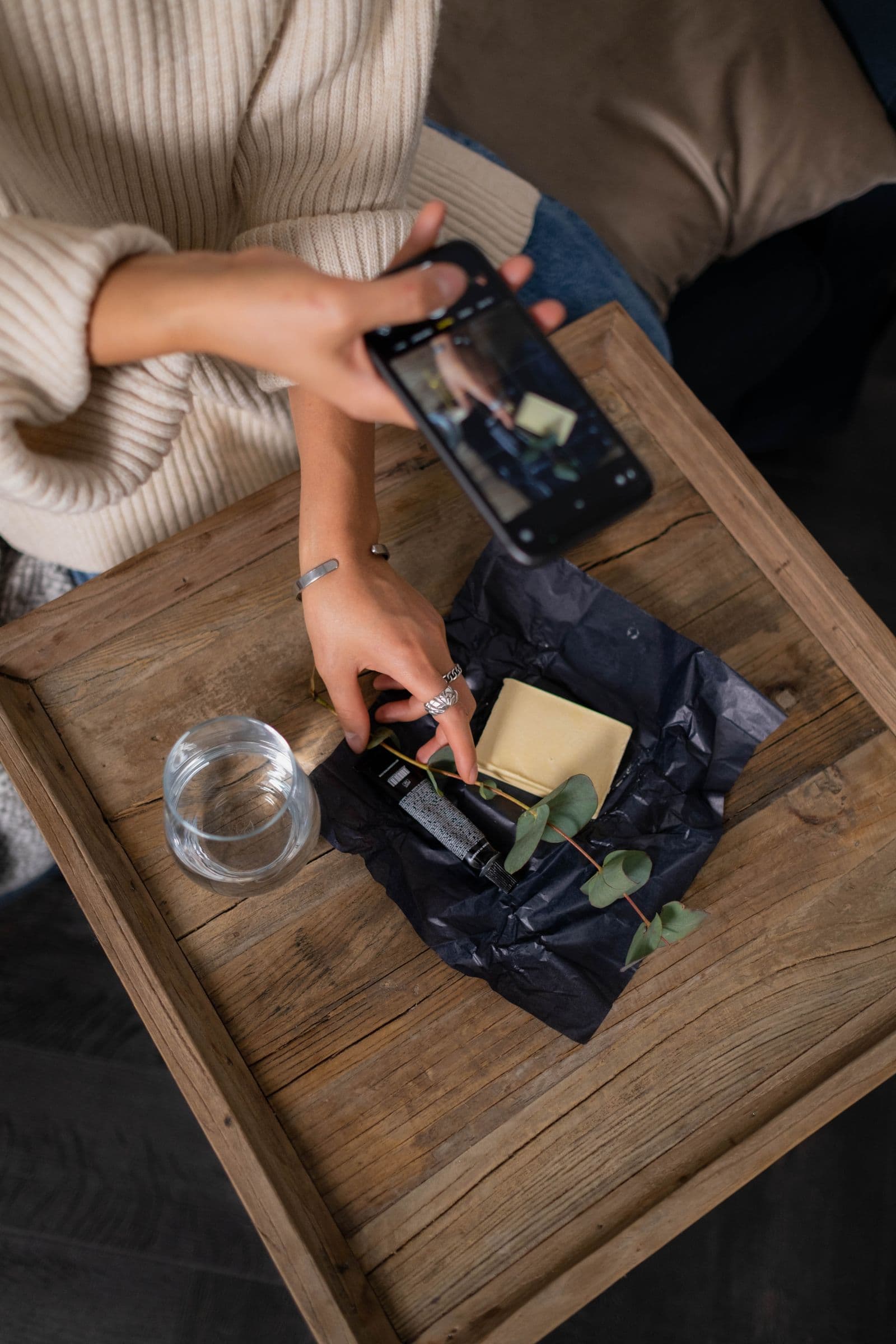
You shoot a product on your phone, turn the handset, tap the shutter. On screen it looks upright. In the marketplace upload form it arrives lying on its side — same file, a quarter turn out.
This is not your phone breaking. The picture may well be sideways inside the file, and has been since you took it. Your phone shows it to you the right way up regardless. The upload form did not.
Your file is in one of two states, and telling them apart takes a single check.
The camera saves the picture the way the sensor saw it
An image sensor is a fixed rectangle bolted to the phone; it does not turn when you do. Shoot a portrait photo and it still records a landscape frame, with your subject lying on its side inside it.
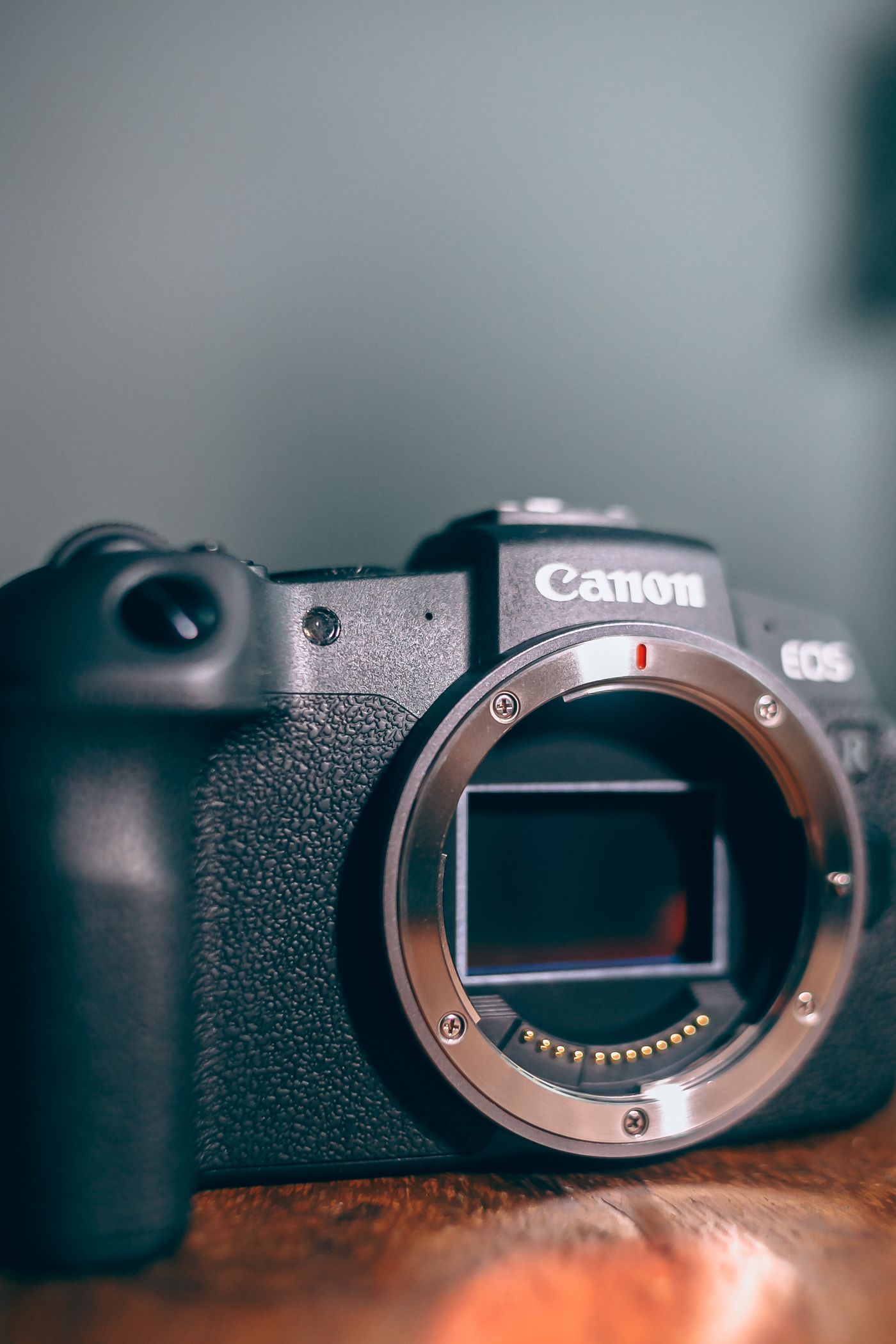
Many cameras avoid rewriting millions of pixels and instead write a small number into the metadata meaning "turn this a quarter turn before showing it." Others rotate the pixels on save and mark the file as already upright — which is why two phones behave differently with the same shot. In a JPEG that number is Exif tag 274, Orientation, and it can describe mirrored frames as well as turns.
Some readers honour the flag, some ignore it
Modern browsers do read it. The CSS image-orientation property has an initial value of from-image; MDN puts it plainly: "The EXIF information contained in the image is used to rotate the image appropriately." That has worked across browsers since April 2020.
Anything that is not a browser may still ignore the tag. Web standards have converged on honouring it, but plenty of server-side decoders, thumbnailers and image libraries were written before that convergence and never look at the tag at all — and nothing obliges them to.
So the question is never "is my photo sideways" but "did the thing displaying it read the flag". Your gallery does. A marketplace thumbnail generator may not.
Rotating in your gallery may only rewrite the flag
Tap the rotate button and the result depends on the app. Two very different things can happen.

- The app changes the orientation value and leaves the pixel data untouched. Instant, lossless, invisible to anything ignoring the flag: your photo is still sideways in the file.
- The app re-encodes: it decodes the pixels, turns them, writes a new file with the flag reset. The rotation is baked in and survives anywhere. For a PNG or lossless WebP that costs nothing; for a JPEG it usually costs one re-encode generation, worth paying once and not worth repeating.
Which path an app takes is not something you can tell from the button, and it has changed between versions of the same app. Assume nothing; check the output.
Worse is a tool that rotates the pixels but copies the old metadata unchanged: the flag still says "rotate", the pixels already are, and honouring readers turn the photo twice.
How to tell which state your file is in
You cannot settle this by looking harder, only by checking something that is not a preview.

- Compare the shape to the numbers. If a photo that looks portrait reports as wider than tall in the file's properties, the pixels are landscape and a flag is doing the work. Some viewers correct those numbers too, so a mismatch proves more than a match.
- Read the flag itself. Browsers, desktop viewers and file-manager thumbnails almost all honour the tag now, so agreement between them proves nothing. Work on a copy, never the original, and open it in an Exif viewer to read
Orientationdirectly. Anything other than1, often shown as "Normal", means a flag is doing the work and the pixels are not upright.
Settle orientation before anything else touches the file
remover.bg accepts PNG, JPEG and WebP up to 25 MB and hands back a new file with the background gone. It is a background remover, not a photo editor: rotating belongs in your phone's photo editor or design tool, before you upload.
That ordering matters because you are creating a new file. PNG and the WebP container both have somewhere to put Exif — Google's WebP spec allows metadata "in 'EXIF' or 'XMP ' Chunks" — but whether the editor you rotated in writes any into its export is that editor's decision, not yours. Bake the rotation into the pixels and there is no flag left to lose. Our notes on exporting WebP directly cover that format.
A working order:
- Rotate in an editor and export a copy, rather than tapping rotate in the gallery.
- Check the
Orientationvalue on that exported copy. - Upload it for background removal.
- Place the cutout on a solid colour or your own photo, with a drop shadow if it needs to sit on a surface.
Teams pushing volume through the HTTP API for batch background removal should normalise orientation in the pipeline first: one sideways source becomes one sideways cutout, a thousand times over. Orientation sits outside the background rules in our Amazon image guide, but a sideways listing looks careless whatever else you got right.
The habit worth building
Trust the file, not the preview. Rotate by export and read Orientation once on the copy; then the photo is upright in a browser, a thumbnail generator and a printer's queue alike.