 English
 Español
 Português (BR)
 Deutsch
 Français
 Italiano
 Türkçe
 Bahasa Indonesia
 Русский
 日本語
日本語 한국어
한국어 Українська
 Tiếng Việt
 Polski
 Nederlands
 ไทย
ไทย Română
 简体中文
简体中文 繁體中文
繁體中文 العربية
 Български
 Filipino
 हिन्दी
 اردو
اردو বাংলা
বাংলাHEIC Photo Won't Upload? Fix It on iPhone and Windows
HEIC photo refused by the upload form? Switch the iPhone camera to Most Compatible, convert the HEIC files in your library, and check what a file really is.
- HEIC
- iPhone
- file formats
- JPEG
- upload errors
- iOS
- Windows
- photo tips
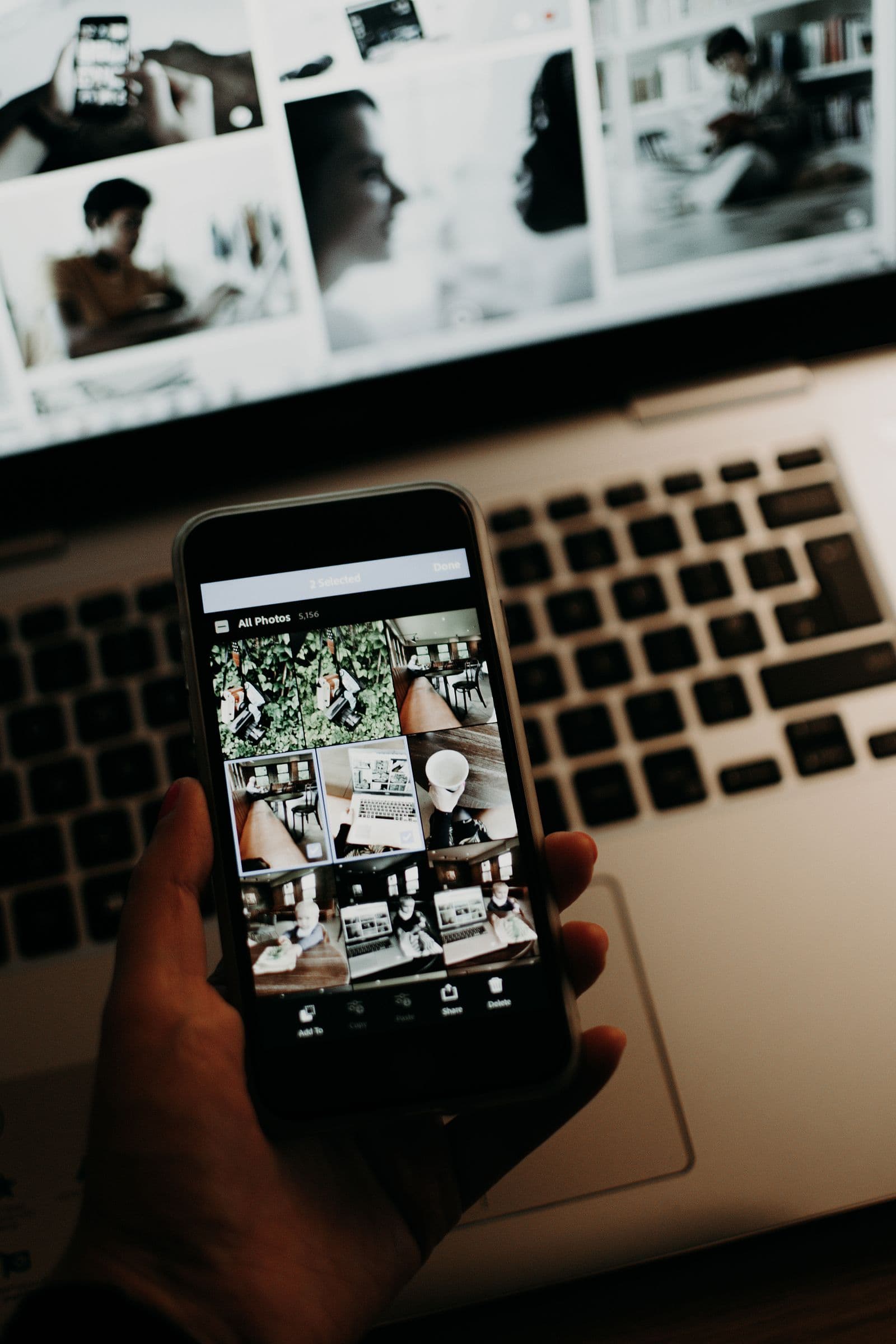
You take the photo, it looks perfect in Photos, and then the upload box says file type not supported — or names the culprit: HEIC. Nothing is wrong with your camera or your photo — it is saved in a format the site refuses to read.
The photo is fine everywhere on the iPhone: it opens, it prints, you can text it. It only breaks at a web form, a Windows PC or older software.
Two fixes, and you want both: stop your phone making these files, and convert the ones already in your library.
Why the upload form says no
HEIC is the extension Apple uses for HEIF images. It stores the same picture in a noticeably smaller file than a JPEG, which is why it became the default.
Upload forms work from a list of accepted file types, and well-built ones inspect the file itself rather than trusting its name. If HEIC is not on that list, it is turned away before anything sees the picture.
That includes us: remover.bg accepts PNG, JPEG and WebP, up to 25 MB per file, on web and in the mobile app. WebP goes in and out with no conversion step, but a HEIC has to become one of those three first.
Switch the camera to Most Compatible
Open Settings, tap Camera, then Formats. At the top you get two options: High Efficiency and Most Compatible. Pick Most Compatible.
From then on, every new photo is saved as a JPEG. Apple's documentation states that on Most Compatible "all new photos and videos will now use JPEG or H.264 format".
It does not touch photos you already took; those stay HEIC. And JPEGs take more space, so if storage is tight, leave High Efficiency on and convert photos one at a time.
Converting the photos you already have
On iPhone, the route that needs no extra apps is the share sheet. Open the photo, tap the share button, then tap Options at the top. Under file format, Automatic suits the destination and Current blocks conversion; tap Most Compatible and, in Apple's words, files may convert to JPEG. Then choose Save to Files and pick a folder.
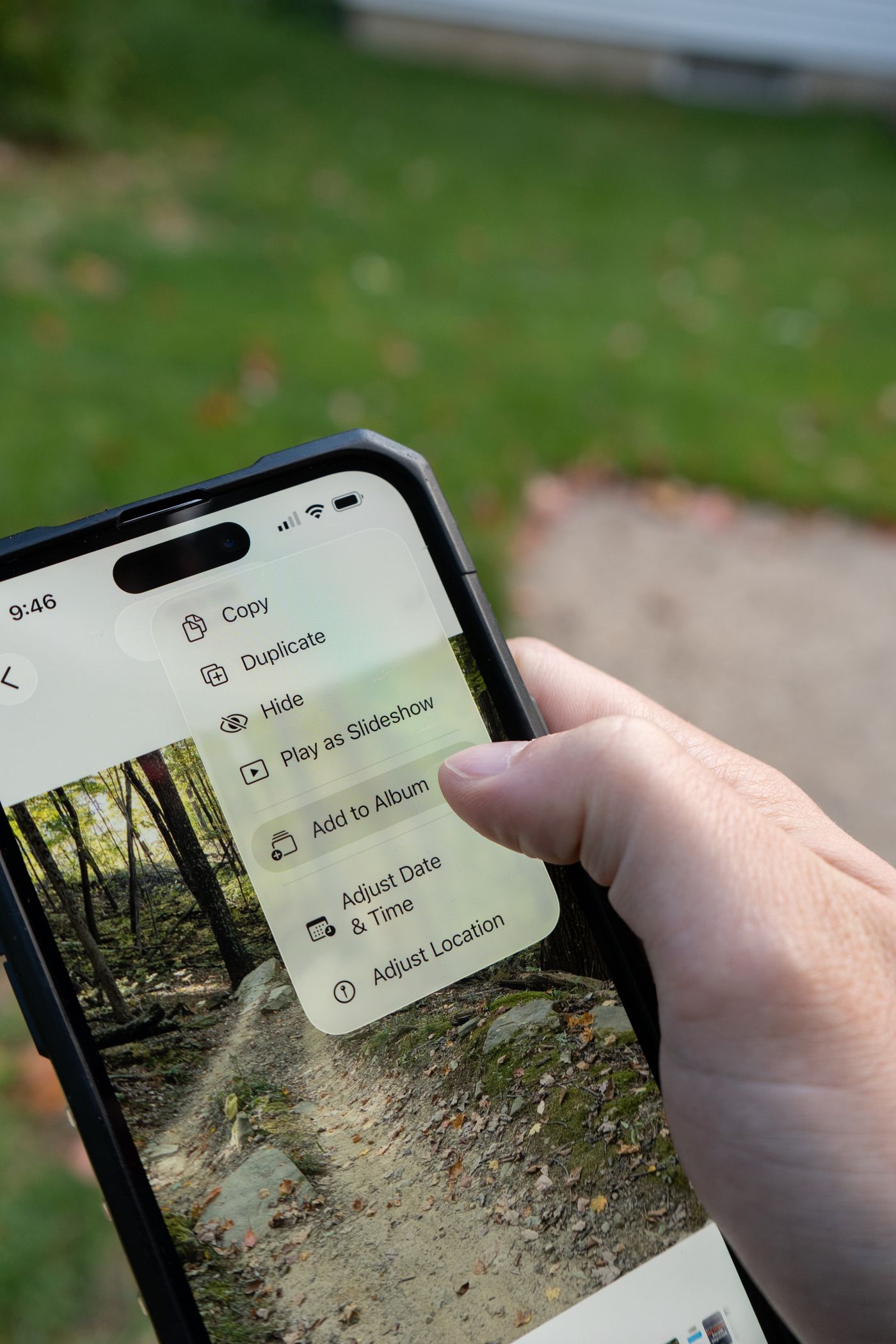
The Shortcuts app makes it permanent: Convert Image set to JPEG, then the action that saves back to your photo library or Save File. With Show in Share Sheet on, conversion is two taps away inside Photos. On a Mac, use File > Export from Photos or Preview, then JPEG.
On Windows, HEIC needs two Microsoft Store components: the free HEIF Image Extension plus an HEVC decoder. Microsoft's listing says HEVC Video Extensions must be installed to view .heic files, and that listing is paid. Many PCs shipped with a free "HEVC Video Extensions from Device Manufacturer" build that Microsoft no longer surfaces in Store search, so check Settings > Apps > Installed apps first: if it is there already, you are done.
Whichever route you use, convert to JPEG, not PNG. A PNG of a full-resolution phone photo can be enormous and may run into the 25 MB upload limit — PNG earns its keep on the way out, when you need transparency around a cut-out subject.
AirDrop and email are unreliable converters
People say "just AirDrop it" or "email it to yourself", and sometimes that does produce a JPEG. But Apple's guidance is that the file might be converted if the receiving device cannot handle HEIC — the outcome depends on the other end. Check what arrived.
One related setting: Settings > Apps > Photos > Transfer to Mac or PC (older iOS: Settings > Photos). Automatic means files might be converted during a cable transfer, while Keep Originals hands over the HEIC as-is.
Check what the file really is
In Photos, open the picture and swipe up, or tap the information button; the panel gives you the capturing device, the date and camera metadata — but not the format. For the filename and the actual file type, save the photo to Files, press and hold it and choose Get Info. And renaming IMG_4471.HEIC to IMG_4471.JPG converts nothing: the bytes are unchanged, and a file that lies about itself fails in more confusing ways.
The Live Photo trap
A Live Photo is a still plus a short clip. Apple says a Live Photo is shared as a still to anything that cannot handle the format, but it is not always obvious which part an upload form took.
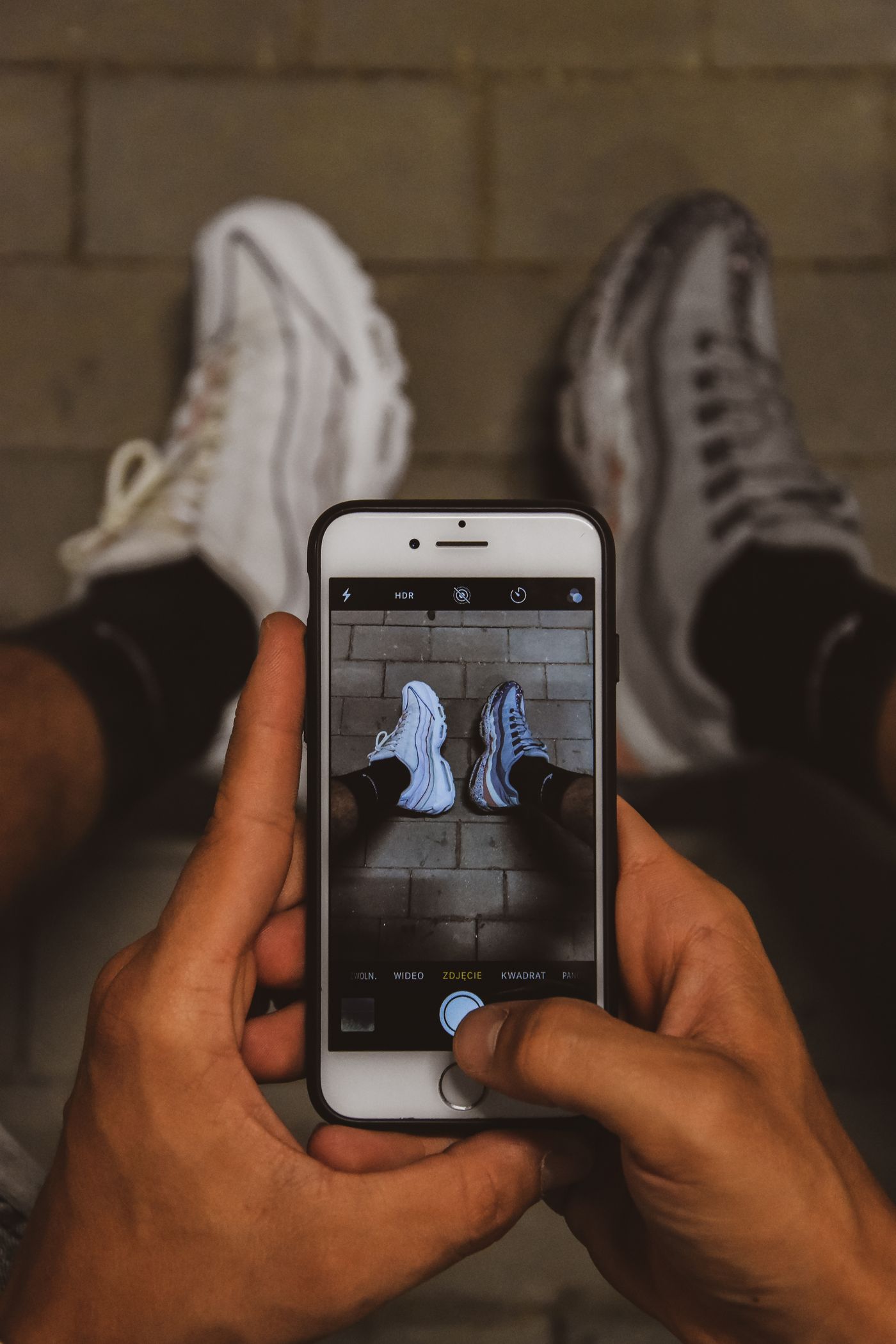
To settle it, open the photo, tap Edit, then tap the Live button at the top to turn the Live feature off: what remains is a still of the key photo. If that frame is not the moment you wanted, move the white frame on the frame viewer and tap Make Key Photo first. It matters for anyone photographing items to list for sale, where a blurred frame means a soft, smeared edge.
Once it uploads
Change the Formats setting today and the pile stops growing; convert from the back catalogue only when an old photo needs to go somewhere. A converted JPEG behaves like any other photo: it goes in, the background comes off, and you get back a transparent PNG or the flat colour you picked.