 English
 Español
 Português (BR)
 Deutsch
 Français
 Italiano
 Türkçe
 Bahasa Indonesia
 Русский
 日本語
日本語 한국어
한국어 Українська
 Tiếng Việt
 Polski
 Nederlands
 ไทย
ไทย Română
 简体中文
简体中文 繁體中文
繁體中文 العربية
 Български
 Filipino
 हिन्दी
 اردو
اردو বাংলা
বাংলাRemove a Photo Background on Your Phone
No laptop needed: how to shoot on a phone so the edge comes away clean, what the built-in iPhone and Google Photos tools handle, and where hair defeats them.
- iphone
- android
- mobile
- background removal
- transparent png
- webp
- photo editing
- google photos

You took the photo on your phone, you need it without the background, and you would rather not go find a laptop. (New to this? How background removal works covers the whole job; this guide is the phone-only route.) Recent iPhones and many Android phones have a cutout tool built into the photo gallery, and for plenty of images that is genuinely enough. It is not on every handset: iPhone needs iOS 16 or later on an iPhone XS or XR or newer, Android a current Google Photos on a recent device.
Most of the quality is decided before you tap anything: a cutout is only as good as the separation between your subject and whatever sits behind it. Get that right at capture and the removal takes seconds. Get it wrong and you spend twenty minutes fighting an edge that never had a chance. What follows is phone-only: how to shoot, where the built-in tools stop, and how to export.
Shoot for the cutout, not just for the photo
Four decisions happen before you open any editor, and they outrank everything afterwards.
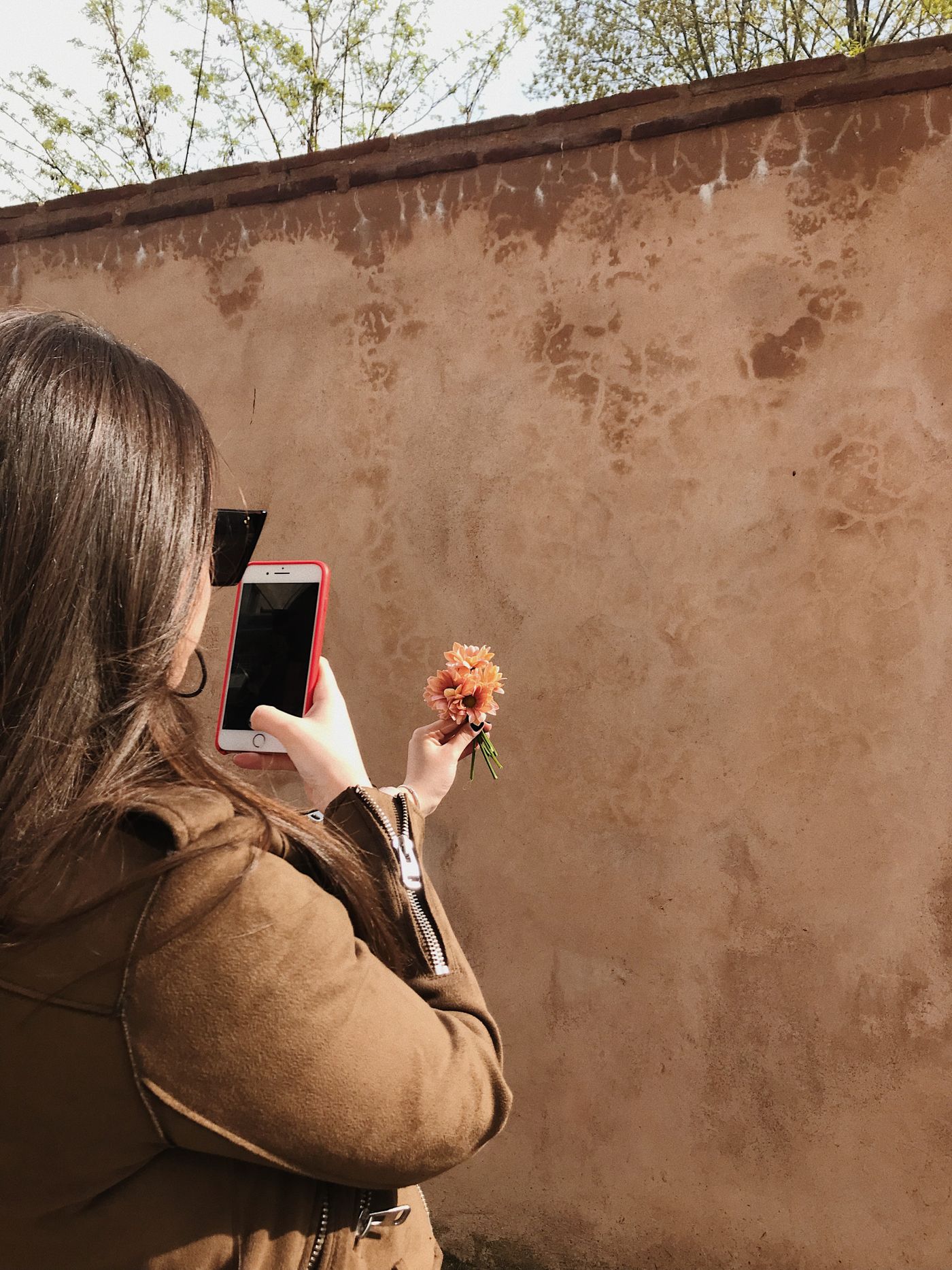
- Contrast against the background. Dark hair against a dark doorway is the hardest case there is. Turn around and shoot against a lighter wall, or step outside — half a metre of repositioning beats any editing.
- Soft, even light. Open shade or a bright window works; hard midday sun leaves a rim of blown-out white along the edge that survives the removal.
- Gap between subject and wall. Standing right against a wall glues your shadow to your outline. Step forward a metre or two and the shadow falls away behind you.
- No motion blur. Tap the subject to lock focus, brace your elbows, and shoot in light bright enough for a fast shutter. Blurred edges cannot be cut cleanly by anything.
What the built-in iPhone and Android tools do well
On iPhone, open a photo and hold the subject until an outline glows; a menu appears with Copy, Add Sticker, Look Up and Share. The same gesture works in Photos, Safari and Quick Look, with the button reading Copy or Copy Subject depending where you are. Paste the result into an app that respects transparency and the cutout survives; paste it into one that flattens images and the transparent area quietly turns white.

On Android, Google Photos can make stickers from photos. Open an image, wait for the shimmer that marks a recognised subject, then press and hold and choose to copy or share the cutout. The requirements Google actually publishes are modest — the latest Google Photos update and at least 4 GB of RAM — but the feature only reached Android in early 2026, so older handsets and stale installs may not show it at all.
Both are fast and need no upload — exactly right for a quick chat share.
Where the built-in tools run out of road
- Hair and fine edges. Wispy hair, fur, and thin straps get simplified into a blob or keep a fringe of the old background. On-device selection is tuned for speed, not for the fifty pixels that make a cutout look real.
- No way to correct it. If the outline clips an ear or swallows a strand, there is no adjustment.
- Getting an actual file is fiddly. It lives on a clipboard or in a sticker tray, not in your camera roll as a transparent file.
- Nothing goes behind it. Putting the subject on a clean colour, another photo, or grounding it with a shadow is a separate job.
Doing it properly, still from the phone
remover.bg runs as a mobile app on iOS and Android as well as in the browser, so the work stays on the device the photo is already on. It cuts hair, fur, and fine edges rather than approximating them, and the editor drops the subject onto a solid colour, a custom colour, or one of your own photos, then adds a realistic shadow so it sits on the surface instead of floating.
Upload accepts PNG, JPEG, and WebP up to 25 MB, which covers ordinary phone captures. Hundreds of images at once is a job for the background removal API rather than any phone screen.
Exporting a file you can actually use
- PNG is the safe default. Almost every app reads its transparency, though some marketplaces and print workflows flatten it onto white. Our guide to transparent PNGs covers when you need one.
- WebP keeps transparency at a smaller file size than PNG, which matters when the image is headed for your own website or store pages. Acceptance is uneven, though: Google Merchant Center and Shopify both take WebP, while Amazon's product image formats stop at JPEG, TIFF, PNG and GIF. WebP support walks through it.
JPEG cannot store transparency. If something demands a JPEG, put a background behind the subject first and export that.
Cutouts headed for chat apps have their own quirks — making stickers from photos covers those.
Before you hit send
Run the test nobody runs: open the finished file on a dark background and zoom to the edge. Halos and leftover fringe are invisible on a white screen and obvious on a black one. If the hair holds up, the built-in cutout has done its job. If it has turned into a blob or carries a pale fringe, nothing downstream will hide it — that is the moment for a proper removal.