 English
 Español
 Português (BR)
 Deutsch
 Français
 Italiano
 Türkçe
 Bahasa Indonesia
 Русский
 日本語
日本語 한국어
한국어 Українська
 Tiếng Việt
 Polski
 Nederlands
 ไทย
ไทย Română
 简体中文
简体中文 繁體中文
繁體中文 العربية
 Български
 Filipino
 हिन्दी
 اردو
اردو বাংলা
বাংলাWhy Your Photos Look Washed Out After Upload
Washed-out photos after upload are usually a colour profile mismatch, not compression. See which profile your file carries, and convert to sRGB before export.
- colour profile
- sRGB
- Display P3
- Adobe RGB
- image export
- product photography
- web images
- background replacement
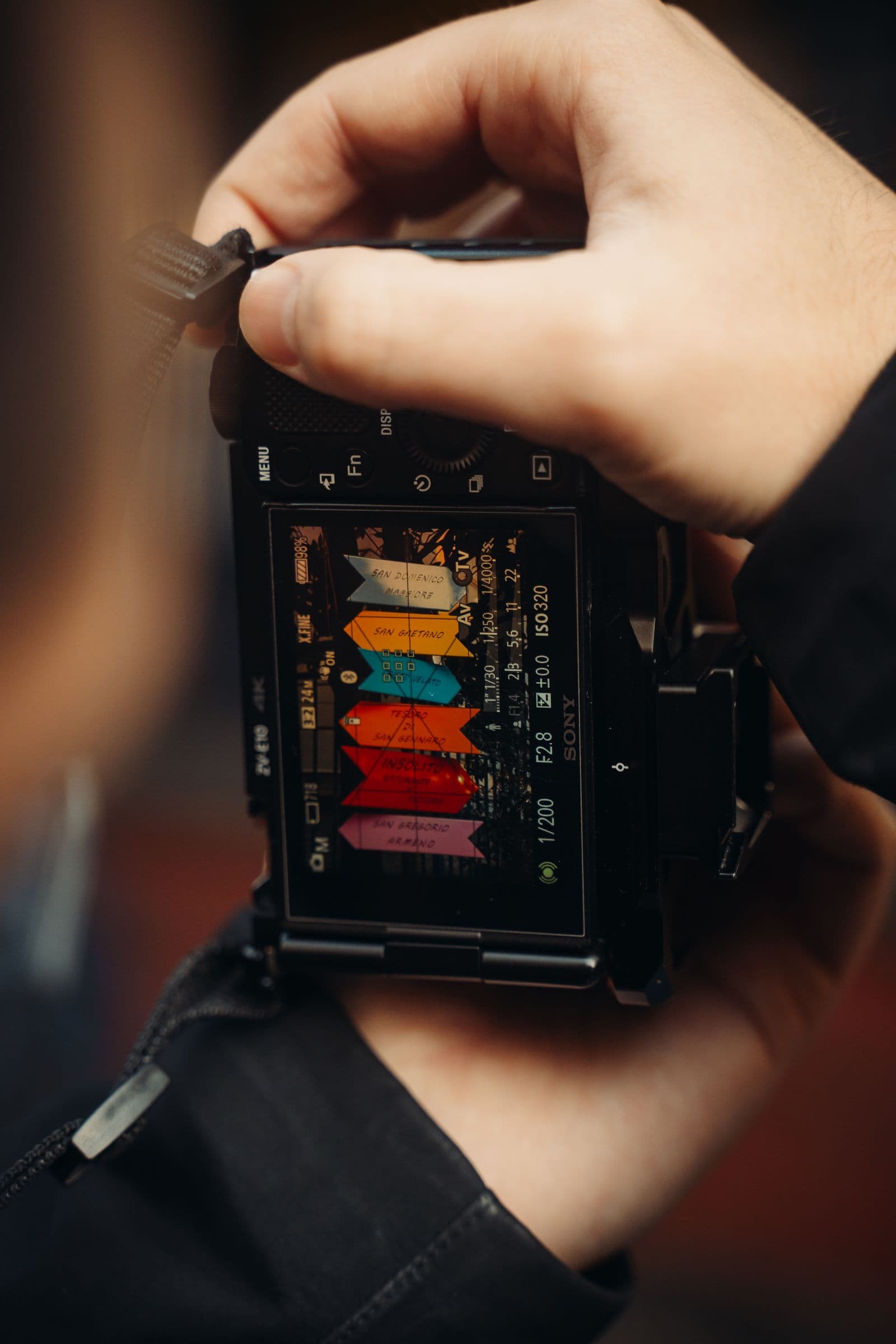
You edit a product shot, the red matches the actual jumper, you upload it to your store — and the red comes back as brick. The greens go olive. Open the original on the same screen: still perfect.
That is not compression, and the platform is not "ruining" your images. The usual cause is a colour profile mismatch: the file describes its colours in one language and the page reads those numbers in a different one.
Why the same numbers produce two different colours
A pixel is three numbers, and 200, 40, 40 is a specific red only once you know which colour space measures it. Display P3 pushes the red primary further out than sRGB (x 0.68 versus 0.64), so the same triplet describes a deeper red. Adobe RGB (1998) keeps sRGB's exact red and blue primaries and stretches the green one instead, so its extra reach is in greens and cyans. Either way, the numbers mean something different to a browser assuming sRGB.

The profile is the note saying which ruler was used, and the web defaults hard when it goes missing. CSS Color Module Level 4 is explicit: for compatibility, colours specified in HTML, and untagged images must be treated as being in the sRGB colour space unless otherwise specified. Your untagged upload never specifies otherwise, so sRGB it is.
So if your file was exported in Adobe RGB or Display P3 and the profile gets dropped — a pipeline that re-encodes, a converter that strips metadata — those wide-gamut numbers get read as sRGB. Squeezed into a narrower assumption, they come out desaturated — your washed-out look. Which colours suffer depends on the source: an Adobe RGB file misread as sRGB loses its punch in greens and cyans, while a Display P3 file also drops saturated reds. Neutrals barely move: nothing on a grey packshot, disaster on a coral swimsuit.
Confirm it is the file, not your screen
Put the original and the upload side by side in one browser window.
- Right in your editor, flat in the browser: profile problem.
- Identical in the browser but different from your editor: your editor is previewing in a working space the browser ignores.
- Wrong only on your phone or a colleague's laptop: display difference, not the file.
Then drag the original into a browser tab — browsers honour an embedded profile. If the local file is right and the upload is not, the upload path discarded the tag.
Find out which profile the file carries
- macOS: open the file in Preview and click the Info button in the toolbar (or press Command-I), then look at the More info tab, which lists the image's colour profile.
- Photoshop: click the arrow on the document status bar and choose Document Profile.
- Lightroom: the Colour Space dropdown in the export dialog is what you actually shipped.
- Anything, any platform: ExifTool prints it —
exiftool -ProfileDescription photo.jpg.
For the web, anything other than sRGB is your suspect. Recent iPhones capture photos in wide colour and tag the file accordingly — Apple lists "wide color capture for photos and Live Photos" in the camera specs. Some Android phones offer a wide-gamut capture option too, so check the file.
Convert to sRGB — do not strip or assign
Three similar-sounding operations do very different things.
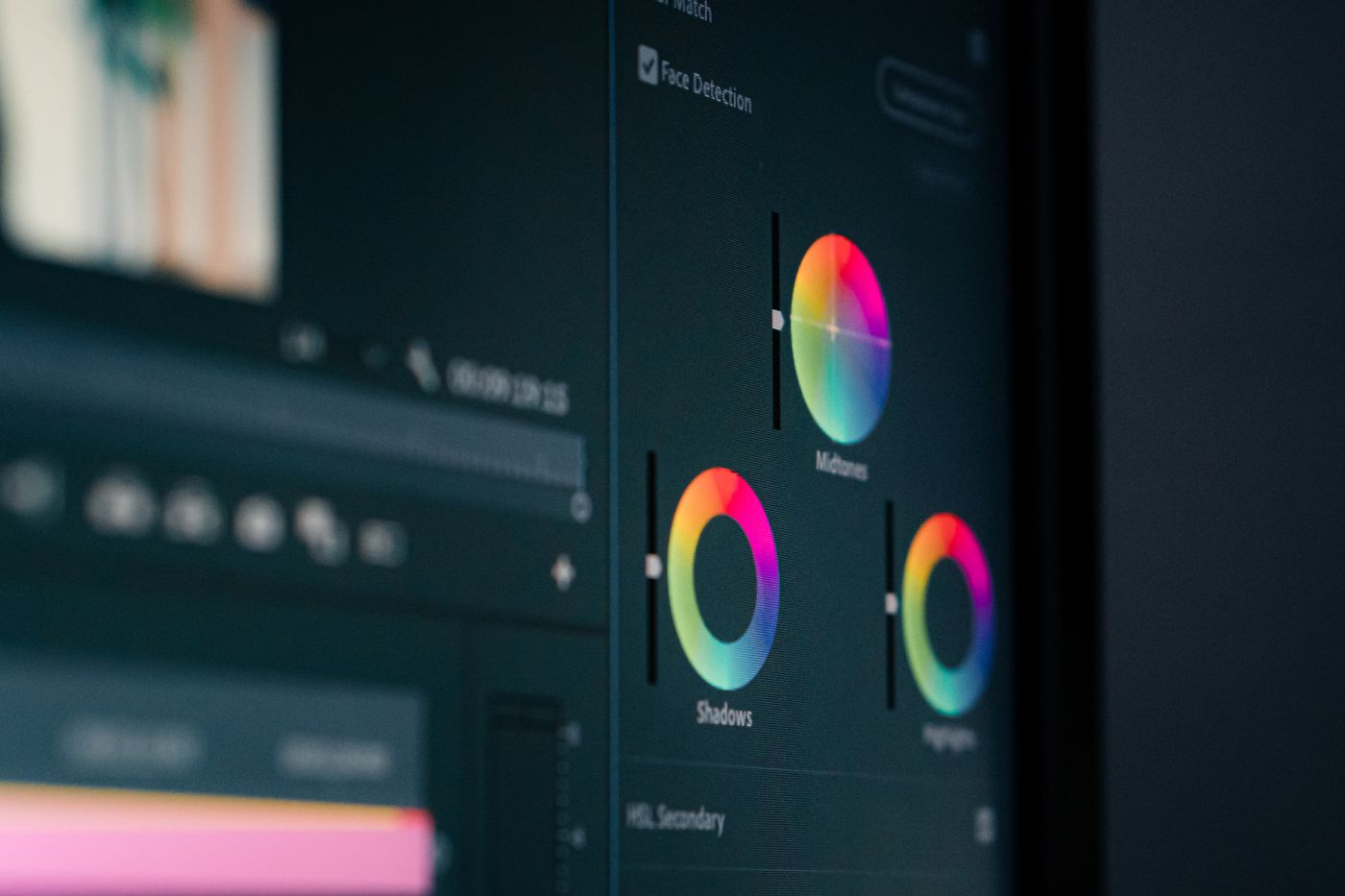
- Strip removes the label and leaves the numbers alone: wide-gamut data now guaranteed to be read as sRGB, which makes things worse.
- Assign relabels without recalculating, which changes the appearance, usually to something wrong.
- Convert recalculates every pixel so the colour stays as close as the smaller space allows, then attaches the sRGB tag.
Convert is the one you want: Photoshop's Edit › Convert to Profile, or Lightroom's export Colour Space set to sRGB. Expect your most saturated colours to shift slightly.
The reverse case: screenshots that look too vivid
Same mechanism, opposite direction. A screenshot from a wide-gamut display records values in that display's space. Screenshots taken on macOS are generally saved with the display's profile attached; other capture tools may not attach one. Read back as sRGB, the same numbers render more saturated than what you saw: neon greens, sunburnt skin. Same fix.
Why this matters when you replace the background
A mismatched profile stops being subtle here. Drop a cutout onto your brand colour in remover.bg, then put that image on a page beside a block of the same hex in CSS: the CSS colour renders as sRGB.
If the image carries a different tag, two shades of one colour sit side by side and refuse to match. Converting to sRGB before you upload removes the ambiguity at the source.
Pure white survives conversion unchanged, so a mismatch alone will not fail a marketplace white-background check — the product colours are what suffer. And format is no rescue: PNG, JPEG and WebP all carry profiles, and all get misread when the tag goes missing, transparent cutouts included.
Before your next upload
Set the export colour space to sRGB once, in the preset you actually use, and the problem stops recurring. Then spot-check one upload against the original on one screen: if the colours hold, your pipeline is clean.