 English
 Español
 Português (BR)
 Deutsch
 Français
 Italiano
 Türkçe
 Bahasa Indonesia
 Русский
 日本語
日本語 한국어
한국어 Українська
 Tiếng Việt
 Polski
 Nederlands
 ไทย
ไทย Română
 简体中文
简体中文 繁體中文
繁體中文 العربية
 Български
 Filipino
 हिन्दी
 اردو
اردو বাংলা
বাংলাHow to Change the Background of Any Photo in Seconds
Change a photo background in two steps: cut the subject out with AI, then pick a backdrop that survives the light, perspective, and shadow checks.
- background removal
- backgrounds
- editor
- tutorial

Changing a photo's background used to be the signature Photoshop skill — pen tool tracing, layer masks, edge refinement, twenty minutes of careful clicking per image. Today it's a two-step operation: remove the old background, place a new one. The AI does the tracing.
This is the complete guide to doing it well — because while the tools got easy, the difference between a convincing swap and an obvious fake still comes down to a few decisions humans make.
The two-step workflow
Step 1 — Remove the old background. Upload your photo to remover.bg. The AI identifies the subject — person, product, pet, car — and separates it cleanly, handling the edges that used to eat those twenty minutes: individual hairs, fur, fingers, chair legs, bicycle spokes. You get the subject on a transparent background.
Step 2 — Add the new one. In the editor, choose what goes behind: a solid color, a gradient, an uploaded photo, or nothing at all (keep it transparent — here's when you'd want that). Position your subject, add a shadow if it should sit on a surface, and export.
That's the mechanics. The craft is in choosing well.

Choosing a background that doesn't look fake
Composites fail for predictable reasons. Run new backgrounds through four checks:
- Light direction — if your subject is lit from the left, the background scene should be too. A sunset behind a noon-lit face is the classic tell.
- Light quality — soft, overcast subject light pairs with soft scenes; harsh sunny light pairs with sunny scenes. Mismatched shadow hardness reads as "pasted" even when viewers can't say why.
- Perspective — a subject shot at eye level looks wrong against a background photographed from above. Pick scenes shot from a similar height.
- Grounding — subjects standing on something need a contact shadow. A person hovering two pixels above the floor breaks the illusion instantly.
Solid colors and gradients sidestep checks 1–3 entirely, which is why they're the workhorses of product and profile photography — clean, brand-controllable, and impossible to get "wrong."
What people actually use this for
- Product listings — one product shoot, every channel's background: white for Amazon's requirements, branded colors for your store, seasonal scenes for campaigns.
- Profile and application photos — a clean professional backdrop from any home photo, or the exact plain background a passport office demands.
- Marketing and social — put the same subject in Monday's announcement graphic, Wednesday's story, and Friday's banner, each with different scenery.
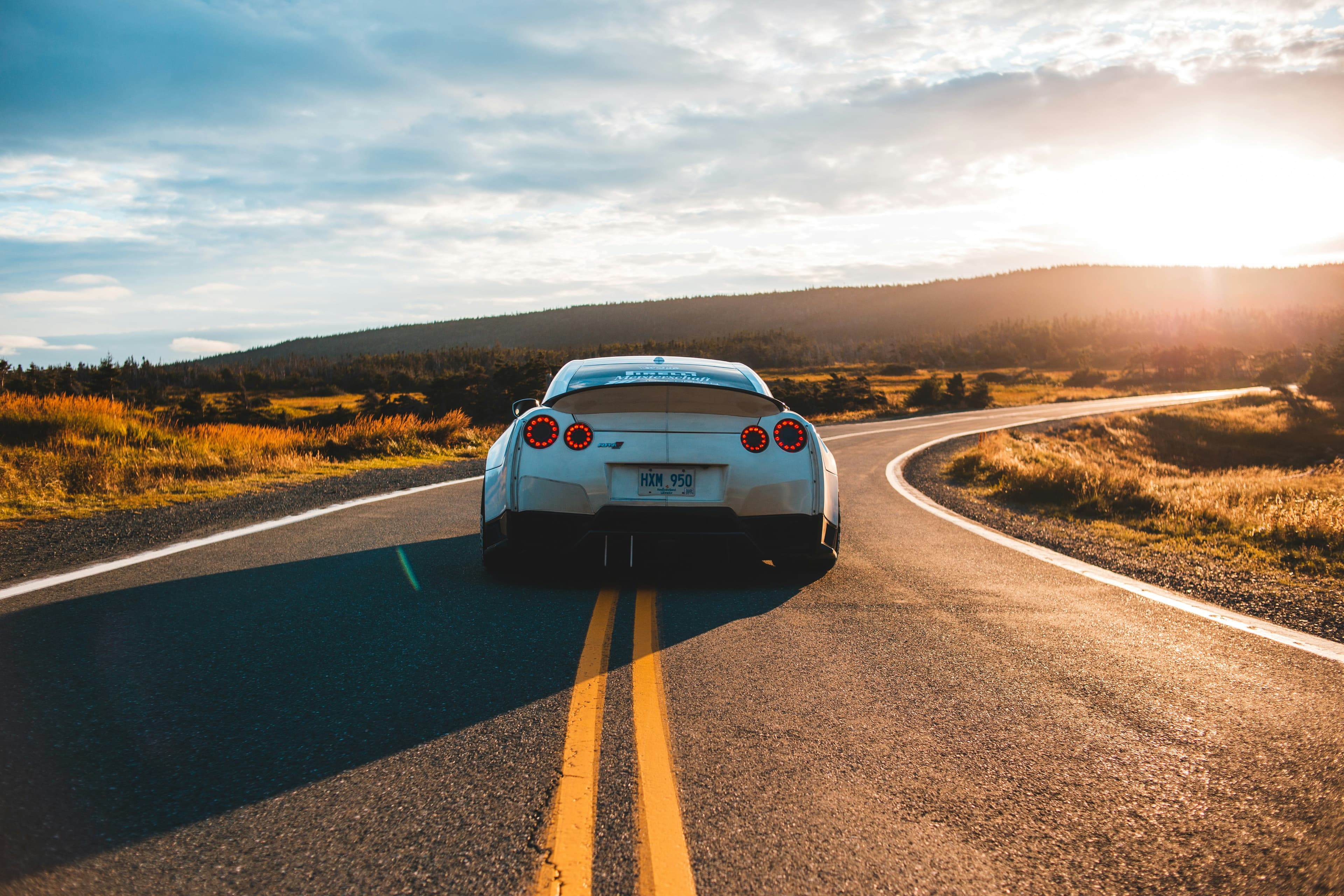
- Real estate of the imagination — the car on a coastal road instead of your driveway, the portrait against the skyline. Aspirational, as long as the physics checks pass.
- Fresh looks for old photos — the shot is great, the background is a parking lot. Rescue it. The same rescue turns a favorite couple photo into DIY save-the-date cards.
Editor techniques worth knowing
- Scale and placement: after the swap, adjust the subject's size relative to the new scene — slightly smaller usually looks more natural than filling the frame.
- Blur the background: a touch of blur mimics camera depth of field and hides small mismatches. Phone portraits especially benefit, since viewers expect background blur from them.
- Match the mood, not just the light: warm subject, warm scene. If the background is a cool blue evening and your subject glows amber, viewers feel the seam.
- Keep a transparent master: export the cutout as PNG once, and every future background change skips step 1. The editor's recent improvements make rebuilding a scene from a saved cutout fast.
When to leave the background alone
Not every photo wants a swap. Context that tells a story — the workshop behind the craftsman, the finish line behind the runner — is content, not clutter. Change backgrounds when the original distracts, misrepresents, or blocks a use case (like marketplace rules). Keep them when the place is the point.
The skill that used to take a Photoshop course now takes a judgment call: what should be behind this subject, and does it pass the light test? Get those right, and nobody will ever ask whether the photo was edited. For the wider picture — how the cutout is produced, what else you can put behind a subject, and where a clean edge earns its keep — start with the full background removal guide.