 English
 Español
 Português (BR)
 Deutsch
 Français
 Italiano
 Türkçe
 Bahasa Indonesia
 Русский
 日本語
 한국어
 Українська
 Tiếng Việt
 Polski
 Nederlands
 ไทย
 Română
 简体中文
 繁體中文
 العربية
 Български
 Filipino
 हिन्दी
 اردو
 বাংলা
Photographing a Pet That Will Not Sit Still for a Cutout
Freeze a restless dog or cat for a clean cutout with bright light, burst mode, a helper with a treat, and a plain backdrop wide enough for every move.
- pet-photography
- motion-blur
- burst-mode
- background-removal
- fur
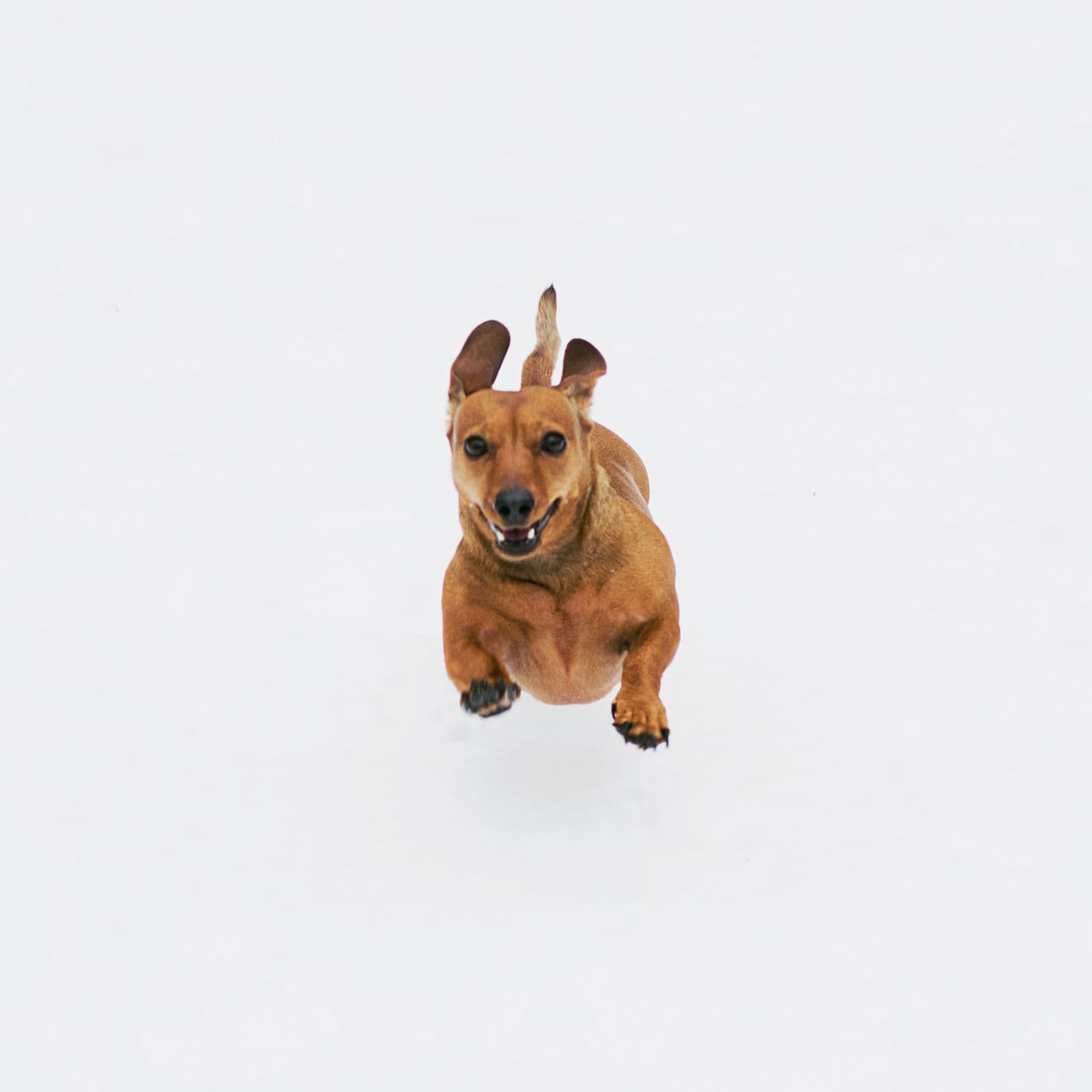
A dog that will not sit still gives you a sharp face and a smeared tail. After the background is removed, that looks like damage: a ragged tail tip, a half-missing ear, or a grey outline around a paw. The edge was never recorded in the file.
This guide is about the animal moving, not your hands shaking. It covers how to freeze a restless dog or cat, meaning record it without blur, and how to plan a backdrop for the whole area it can reach. A background remover cannot rebuild an edge the camera never recorded, so every step happens before the upload.
Why a moving ear or tail breaks the cutout
A camera records a photo over a short time, called the exposure. If an ear moves during that time, it is spread across many pixels: a band partly fur and partly wall, with no clear line between them. A cutout tool looks for that line, and in a blurred band there is none. The mask, the shape that decides what is kept, turns ragged there or keeps a smear of the old background.
Fur is already a hard case, as removing backgrounds from hair and fur explains, and motion blur is one of the file-level causes in why cutout edges look jagged.
Light for a fast shutter
A fast shutter, meaning a short exposure, records a moving ear as a clear shape; a slow one records a smear. In the standard photo mode, phones set the exposure automatically, so what you control is the light.
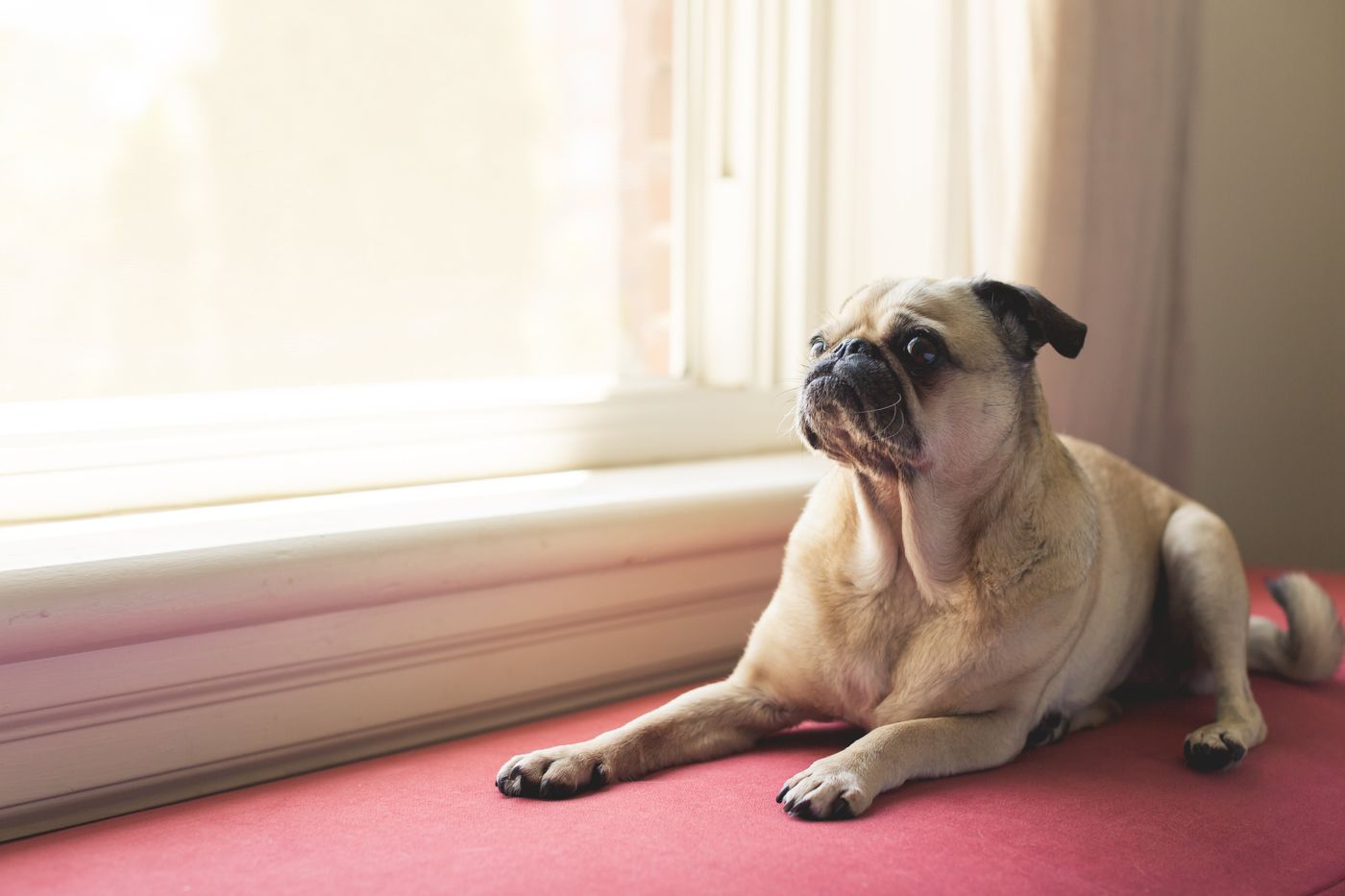
- Put the animal beside a large window, or outdoors in open shade, meaning shade with open sky above.
- Avoid dim rooms, where the phone lengthens the exposure. Apple's Night mode page says a Night mode photo can take several seconds, and Google's Night Sight help asks you to hold still for a few seconds. Neither suits a pet, so if the Night mode icon turns yellow, move the animal toward the light.
Do not use flash. Many animals have a reflective layer at the back of the eye (the tapetum lucidum), so a flash near the lens often produces glowing eyes. It also throws a hard shadow behind the animal. Set flash to Off: Apple's page notes that Auto flash turns on in low light.
Burst mode and a helper with a treat
Do not rely on one tap. Use burst mode, where the camera takes many photos in a row, then choose one.
- On iPhone, Apple's guide says to swipe the Shutter button to the left and lift your finger to stop.
- On Samsung Galaxy phones, Samsung's camera help lists a setting called
Swipe Shutter button to, which can be set to take a burst shot; Samsung notes that available settings vary by model. - On Pixel phones, Google's Top Shot help says the feature, set to Auto or On in the camera settings, takes a burst and chooses a best shot. Google adds that Top Shot photos keep HDR+ quality on Pixel 10 and later, so on an older Pixel inspect any alternate frame at full size before uploading it.
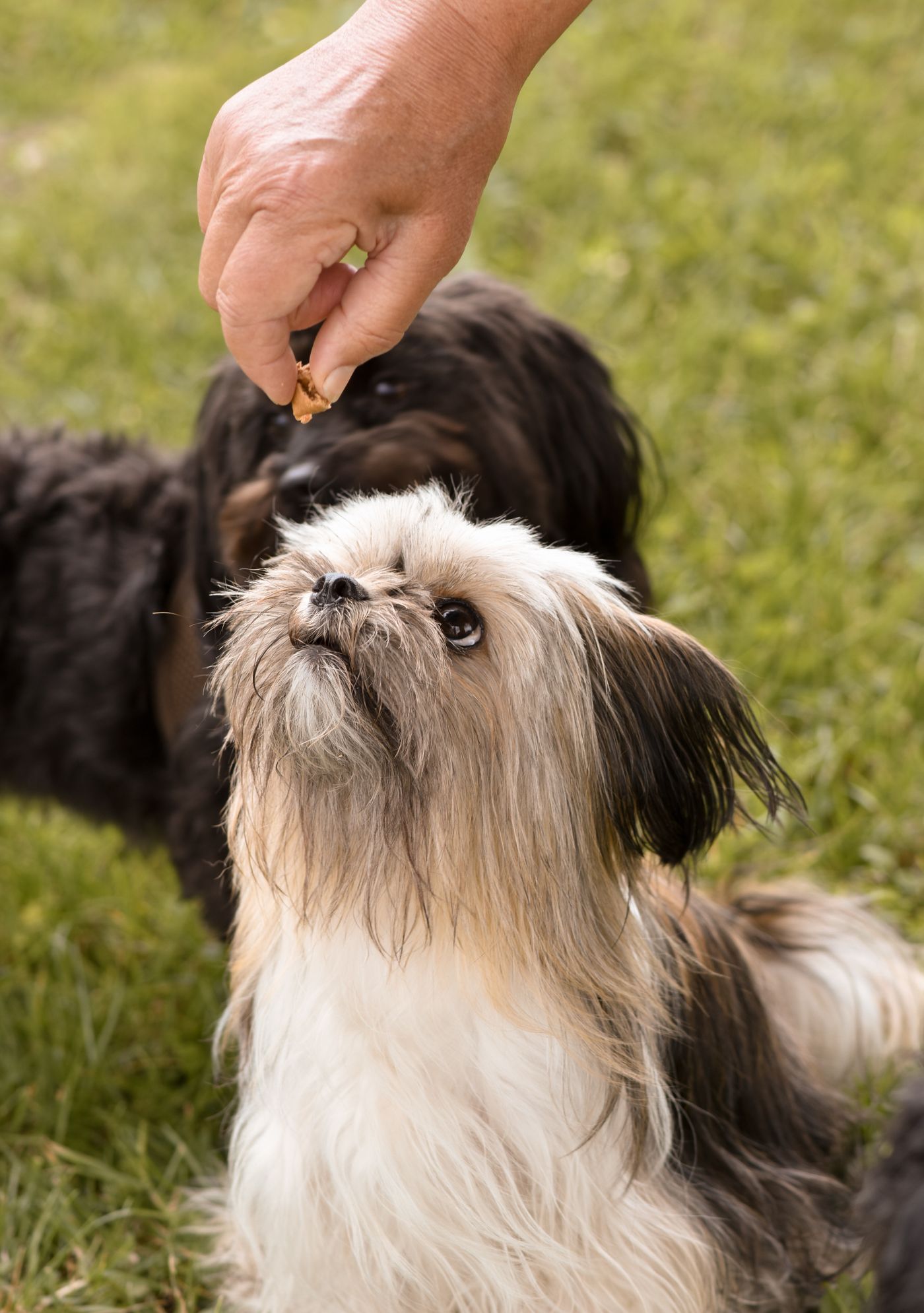
Ask a helper to stand behind you and hold a treat just above the lens. The animal looks up and holds still for a moment. Start the burst as soon as it looks at the treat. Keep sessions short.
A backdrop that covers the whole movement zone
The movement zone is the floor and wall the animal can reach between two photos. A plain blanket where you hope the pet will sit is not enough: the pet steps off it, and a sofa leg appears behind a paw. The background must be plain across the whole zone, not only at one spot.
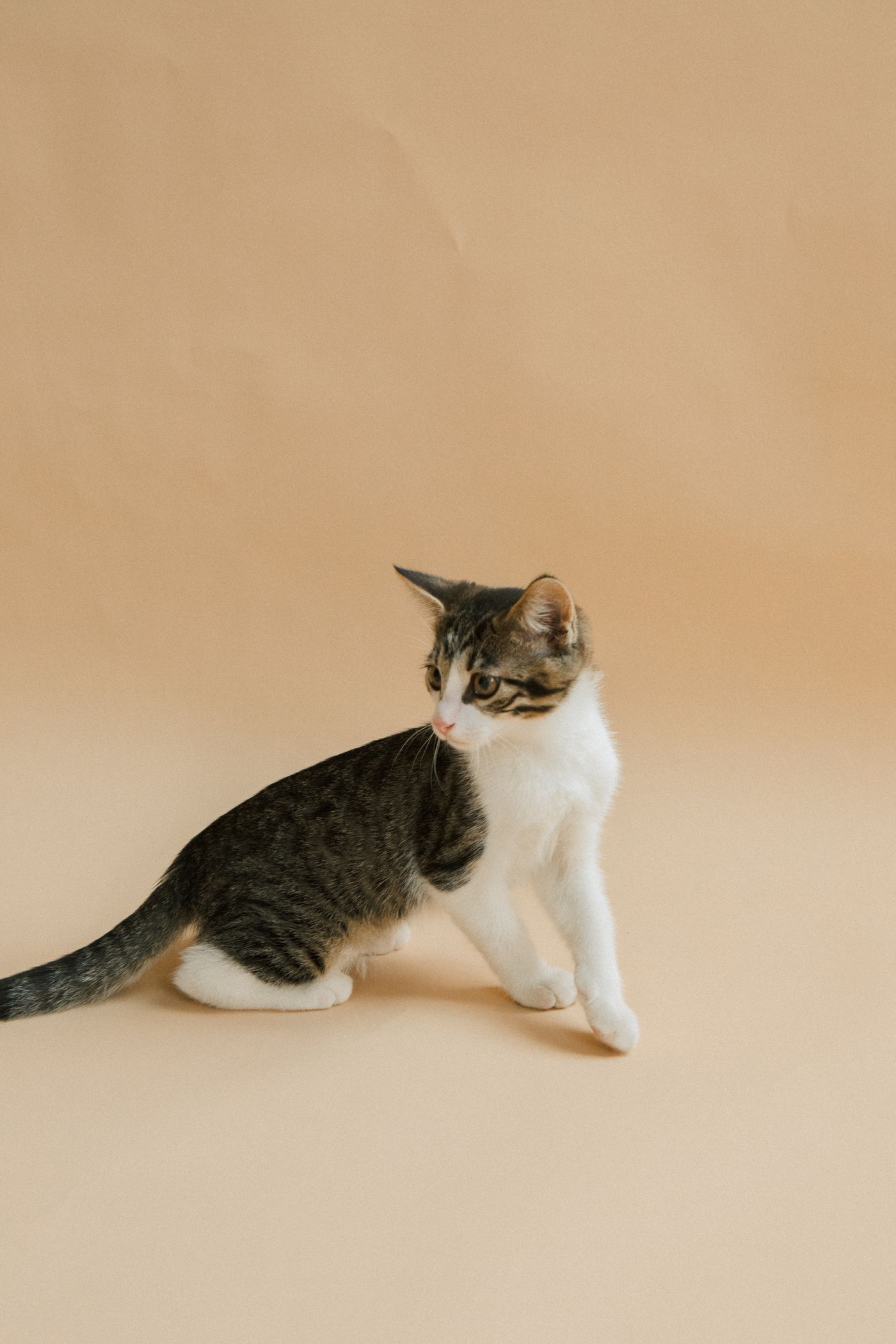
- Use one plain tone on floor and wall, such as a bed sheet or large paper, bigger than you expect.
- Choose a tone that differs from the coat. A pale animal on a pale backdrop leaves little edge to find.
- Keep hands, leashes and toys out of the frame. The AI keeps what it reads as the main subject, so a hand on the collar or a leash may stay in the cutout. The fix is a new photo without it.
Choosing the frame at full size
After the burst, zoom each candidate to full size and check the ears, whiskers, tail tip and paws, because fast-moving parts blur first. A sharp body with a blurred tail still fails at the tail: pick the sharpest photo, not the cutest one. A phone's suggested best shot is only a starting point.
Then upload that frame to remover.bg. It handles fine fur edges, but only edges that exist in the file, so check the ears and tail tip on the result before you export. It accepts PNG, JPEG and WebP, so convert HEIC files first.
Check before you upload
- The whole animal sits on one plain tone, with no seam or furniture behind it.
- No hand, leash or toy is in the frame.
- Ears, whiskers and tail tip are sharp at full size.
If a photo fails a check, take another burst. For things to make with a clean cutout, see pet portraits from photos and turning photos into stickers.