 English
 Español
 Português (BR)
 Deutsch
 Français
 Italiano
 Türkçe
 Bahasa Indonesia
 Русский
 日本語
日本語 한국어
한국어 Українська
 Tiếng Việt
 Polski
 Nederlands
 ไทย
ไทย Română
 简体中文
简体中文 繁體中文
繁體中文 العربية
 Български
 Filipino
 हिन्दी
 اردو
اردو বাংলা
বাংলাSharp Product Photos When Your Hands Shake
Shaky hands blur product photos and wreck the edge a cutout needs. Brace the phone on books or a doorframe, use the self-timer, and shoot beside a big window.
- product photography
- phone photography
- camera shake
- accessibility
- self-timer
- background removal
- small business
- photo tips
Your hands shake. The photo looks fine on the phone screen, then you open it on a laptop: the stitching on the bag is a smear, the print on the box is unreadable, and the whole frame has that soft, doubled look no amount of good lighting hides.
This is not a framing problem. The shutter stays open for a fraction of a second; if the phone moves during it, everything smears in the direction it moved. The fix is mechanical, not photographic. (If the shake is new or getting worse, that is a question for a doctor, not a camera setting.) Shorten the exposure, or take your hands out of the moment of capture.
Blur's second cost: the cutout
Background removal works by finding the boundary between your item and everything behind it. A sharp frame hands it a hard line; a shaken frame hands it a gradient where the item fades into the backdrop, and the mask either bites into your product or leaves a pale halo. remover.bg holds up well on hair, fur and thin edges, but it can only follow an edge the camera actually recorded.
Small things suffer worst: you shoot them close, and closeness magnifies the shake. If you sell rings or chains, pair this with the jewellery photography guide.
Give the phone something solid to lean on
Holding a phone in mid-air makes your arms the suspension. Give that job to furniture instead.

- Rest the bottom edge of the phone on a stack of books; add or remove books until the height is right.
- Press the phone flat against a doorframe or the fridge and shoot along that surface.
- Plant both elbows on the table and let the heels of your hands touch. Your elbows become the tripod.
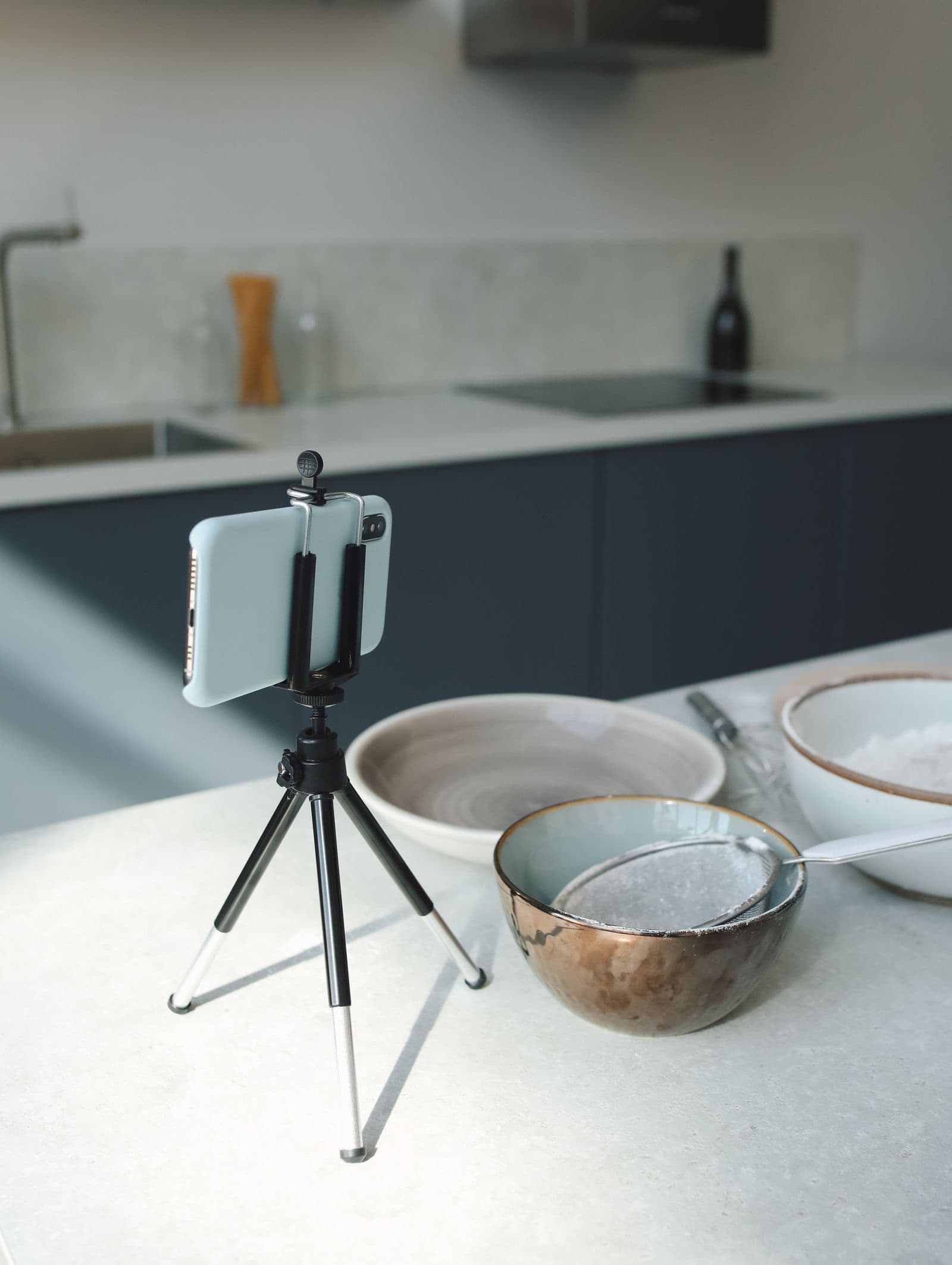
A phone clamp on a small tripod is easier; nothing above costs anything.
Let something other than your finger fire the shutter
Even with the phone braced, the tap is a shove — the largest movement in the exposure.
Use the self-timer for every shot, not just selfies: set the longer delay, tap, then take your hands off the table while it counts down.
A clip-on Bluetooth remote does the same from arm's length, and on some phones a wired headset's volume button fires the shutter. Voice control is worth a try too: Google's Pixel Camera help documents saying "OK, Google, take a picture", which starts the camera timer and fires after a three-second delay — be clear of the phone the moment you stop speaking. Check the current help page, since these commands change. On iPhone, Siri's camera behaviour varies by version; if a spoken command only opens the app, try Voice Control in Accessibility settings, which presses on-screen buttons by voice.
Shoot where the light is strongest
This does the most work of anything here, and you do it by moving rather than tapping. In bright light the camera picks a shorter exposure and records less of your movement; in a dim room it holds the shutter open longer and writes the shake into the picture.

Put the item on a table beside the largest window in the house, at midday, ideally overcast. Direct sun through glass is harsh; a thin white curtain softens it.
A phone's flash is a small LED, not a studio strobe: the extra light buys a shorter exposure, but it flattens the item and throws glare across anything shiny. Window light first; flash only when there is no daylight to be had.
Take several frames, then keep one
Tremor is not constant. Fire three or four shots of the same setup — hands off the phone each time — and one usually lands in a still moment. Your camera's burst control can work too, but check how your phone triggers it: on Pixel phones holding the shutter starts a video rather than a burst, and on iPhone one drag of the shutter button fires a burst while the opposite drag starts recording — check your camera's help before you rely on it. On a Pixel with Top Shot set to Auto or On in the camera settings, the app takes its own burst around each press and picks the frame it judges best — but it is tuned for expressions more than sharpness, so check the result yourself. Judge the results on a laptop, not the phone screen, where everything looks sharp.
Check the edges before you upload
Zoom right in on the small print: label text, stitching, the seam of a lid. Blur shows there first.
Check the thinnest part of the outline too — a handle, a strap — since that is what a cutout must trace. Soft double edges on letters mean shoot again.
Then upload the original file, not a screenshot forwarded through a chat app. PNG, JPEG and WebP all work, up to 25 MB. Once the background is gone, a drop shadow sits the item back on the surface — the guide to realistic shadows covers how much of one reads as real.
Set it up once, use it for every listing
Decide which table, which window and which stack of books, then leave the arrangement standing. Every future item drops into a setup that is already steady. Consistency across a shop comes free with it — half of what makes the storefronts in the Etsy product photo guide look professional. Your hands were never the obstacle. Holding the phone was.