 English
 Español
 Português (BR)
 Deutsch
 Français
 Italiano
 Türkçe
 Bahasa Indonesia
 Русский
 日本語
 한국어
 Українська
 Tiếng Việt
 Polski
 Nederlands
 ไทย
 Română
 简体中文
 繁體中文
 العربية
 Български
 Filipino
 हिन्दी
 اردو
 বাংলা
Can You Cut One Person Out of a Group Photo?
Cutting one person out of a group photo works when they stand apart and you crop to them first. Why overlapping arms limit the result, and what to try instead.
- group-photo
- crop-before-upload
- background-removal
- portrait
- cutout

You have a photo with ten people in it and you need one of them, for an invitation, a memorial card or a profile picture. Can background removal cut that single person out? The honest answer is yes when the person stands apart from the others and you crop the photo to them first, and only in part when they do not.
The reason is how the AI decides what to keep: it separates what it reads as the main content from the background. In a group photo every person looks like main content, so nothing tells the tool which one you mean. And where two people overlap, the part of one person hidden behind the other was never photographed.
What the AI treats as the subject in a group photo
A group photo gives the AI several equal candidates, so more than one person can stay in the result.
Check three things:
- Is there a gap of visible background between your person and each neighbour?
- Do any arms, hands, shoulders or hair of other people touch your person's outline?
- Is any part of your person hidden behind someone else?
Our full guide to removing a background covers how removal works.
Crop to the person before you upload
When there is a gap around your person, crop the photo to that person first. Any photo app can do it, and the result has only one candidate in it.
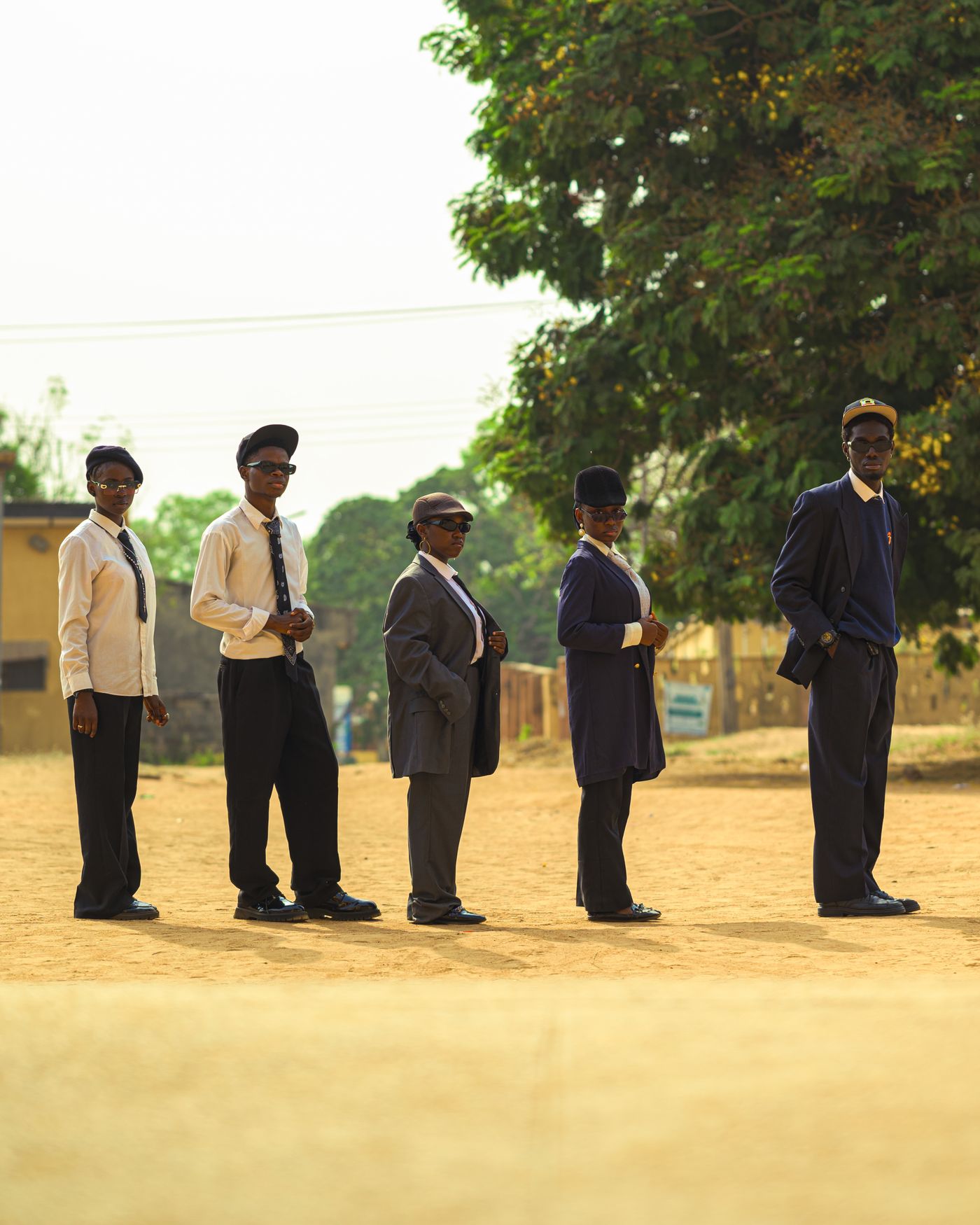
- Crop the original file. A copy sent through a chat app may be smaller and more compressed, so ask for the original.
- Keep a margin. Leave a strip of background around the whole outline. A crop that cuts into hair or hands removes pixels the edge needs.
- Remove the neighbours completely. A sliver of someone's arm at the edge of the crop is still a person-shaped object the AI may keep.
- Check the format. The editor accepts PNG, JPEG and WebP up to 25 MB per image, not HEIC. Apple's page on HEIF and HEVC media explains the "Most Compatible" camera setting that makes new iPhone photos JPEG; a photo already saved as HEIC needs converting first.
Then upload the crop to remover.bg and check the edges for leftover pieces of other people before you export.
When arms, shoulders and hair overlap
The AI decides, pixel by pixel, which parts of the photo to keep. That decision is called a mask, and its edge follows the boundaries it can see between subject and background. When a friend's arm lies across your person's shoulder, no background shows between the two, so there is no subject-to-background boundary for the AI to find there. The arm may stay attached to your person, or the mask edge may cut through it at a place that matches no real edge. Check that area closely before you export.
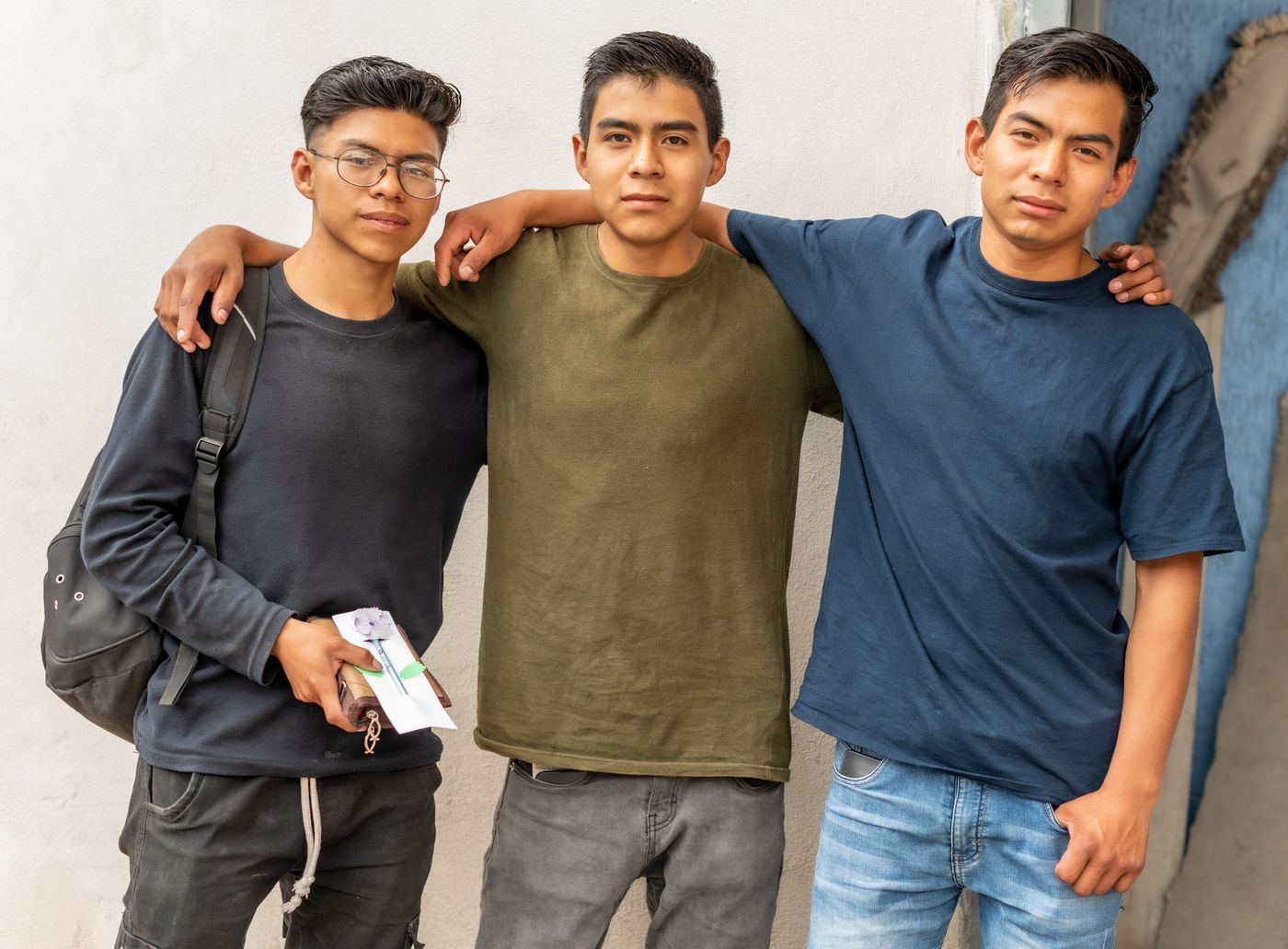
The reverse problem has no fix. The shoulder or hand of your person that sits behind a neighbour was never recorded, so no program can restore it, and this editor does not invent new image content. The hidden part stays hidden.
Loose hair lying on a neighbour's jacket is one of the hardest cases; our guide to hair and fur edges explains how strands are read.
Cropping above the overlap line
The practical fix is to find the highest point where anyone else touches or covers your person and end the crop above it.
- Crop at that line in your photo app, with a margin above and on both sides, then upload the crop.
- Choose the 1:1 canvas preset for a square picture or card, or 4:5 for a portrait shape, then use position and scale to place the head.
- Open the Color tab and try a dark colour, then a light one, to see whether any pieces of the old background remain.
If the shoulders touch, the clean part may be only the head and neck. Our obituary photo guide covers head-and-shoulders crops, and our profile picture guide covers the shot itself.
When to look for another frame instead
If the overlap runs through the part you need, cropping will not help. Look for a different frame, meaning another photo from the same moment.

- A burst series. Apple's iPhone user guide page on Burst mode describes it as a way to take several high-speed photos so that you have a range of photos to choose from. In one of them your person may lean away.
- A Live Photo. Apple's Live Photos page says the iPhone records a short moment before and after you take the picture and lets you choose a different frame as the key photo. Those frames come from the clip, not the still itself, so check the pixel size of the image you get before you print it.
- Other people's shots. Ask the photographer and other guests. A photo where the person stands at the end of the row has only one neighbour.
If no photo shows the person clearly, a tighter crop of the face is better than a cutout with a missing arm.
The short decision rule
- Gap around the person: crop with a margin, then upload.
- Bodies touching: crop above the overlap line.
- Overlap through the part you need: find another photo, because the hidden pixels do not exist.