 English
 Español
 Português (BR)
 Deutsch
 Français
 Italiano
 Türkçe
 Bahasa Indonesia
 Русский
 日本語
日本語 한국어
한국어 Українська
 Tiếng Việt
 Polski
 Nederlands
 ไทย
ไทย Română
 简体中文
简体中文 繁體中文
繁體中文 العربية
 Български
 Filipino
 हिन्दी
 اردو
اردو বাংলা
বাংলাChecking Product Photos When You Cannot See Them
Take listing photos you cannot see: build a setup that frames identically every time, then use your phone image-description tools to verify instead of guessing.
- accessibility
- product photography
- low vision
- voiceover
- lookout
- background removal
- selling online

Every guide to selling online ends the same way: take the photo, then check it looks right. That step is written as if it were free. If you are blind or have low vision it is the whole job, and the usual fix — asking a sighted person — turns two minutes of work into waiting for a favour.
You can take a listing photo buyers respond to without seeing it. What you cannot do is guess. The method that holds up replaces visual judgement with two things needing no eyes: a setup that frames identically every time, and your phone's description tools as verification.
One part gets missed constantly. A cluttered background does not just look bad — it gives the description tool more to talk about than your item, blunting the one check you have.
Fix the setup so framing stops being a visual decision
If item and camera sit in the same relationship every time, framing stops being something you assess per shot. It is something you built once.
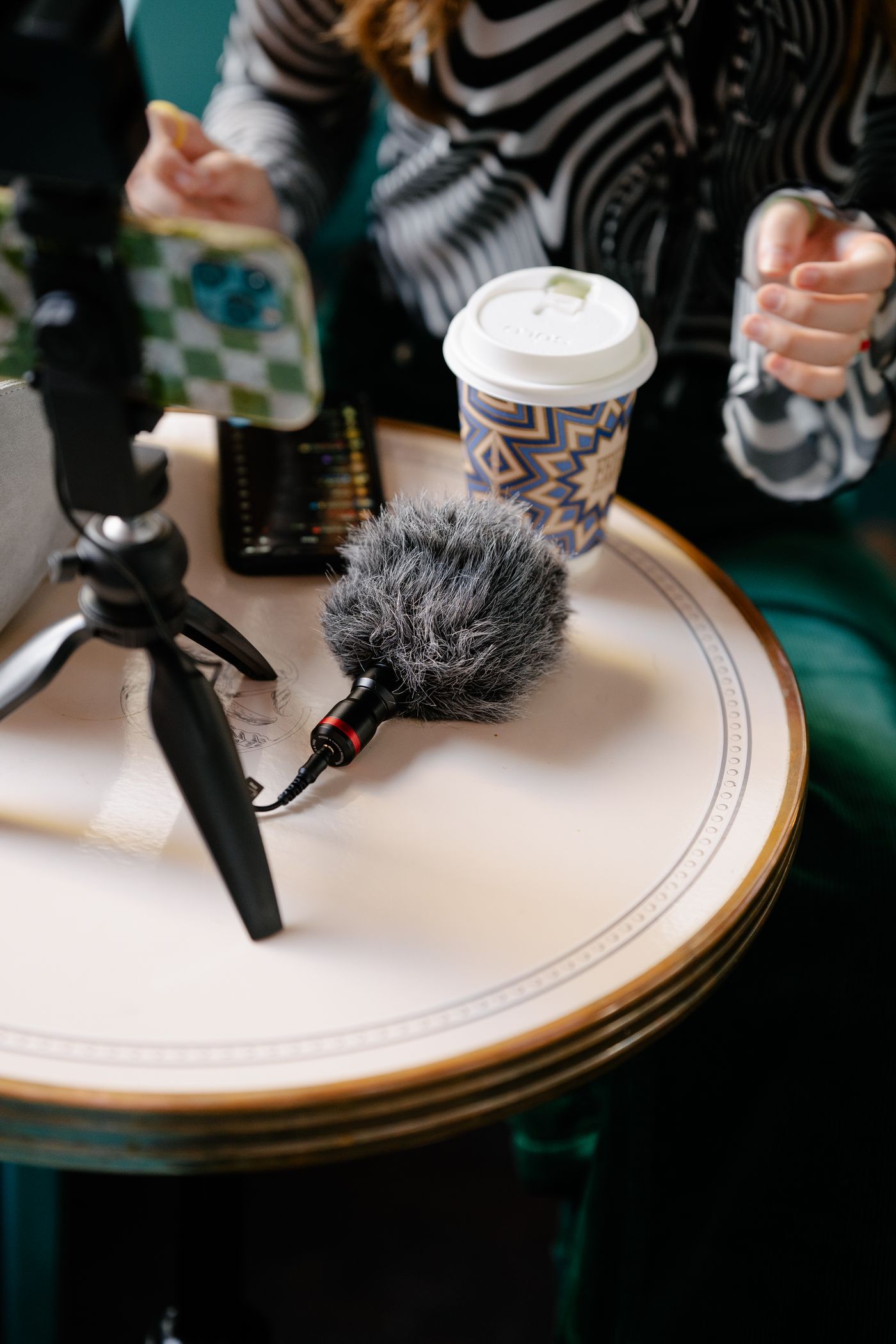
- Put the phone on a stand at the back of a table, lens facing a spot you can find by touch. A stack of books works.
- Mark the item's spot with masking tape, a placemat, or a shallow tray with raised edges. Anything you can feel.
- Place the item the same way each time — spine up, label toward the lens, opening facing you.
Centring and framing are now answered by the furniture.
Have the phone describe the photo back to you
On iPhone, VoiceOver has a recognition setting that makes it describe a photo you have already taken rather than only read the screen. Apple has moved and renamed this control across recent iOS releases, so find the current wording under Settings > Accessibility > VoiceOver in Apple's own documentation rather than trusting a fixed path.

Android has two routes. TalkBack, the built-in screen reader, is now AI-powered and describes images itself, and on recent versions you can ask Gemini for detail beyond what TalkBack volunteers. Google's Lookout gives you a second, usually fuller reading: its Images mode takes a photo straight from the gallery and returns a written description of the scene. Google's caveat is specific — poor lighting, blur, low resolution and anything blocking the item all degrade the result — so read the description as a strong hint rather than a verdict. Lookout is a free separate download, not preinstalled.
Two other iPhone features get recommended here, and neither opens a file you already shot. Magnifier's Detection Mode describes what the camera is pointed at live — useful before you shoot, useless after. Inside it, Text Detection reads text in the camera view, and Point and Speak speaks the text you hold a finger under. VoiceOver's Live Recognition is a separate feature that describes real-world objects and text around you, and it is live-camera only too.
Read the description as evidence, not as a compliment
A description is a rough transcript of what the software found. Treat it that way:
- If it names a room, a window, a sofa or a floor, those things are in your frame.
- If it names your item and nothing else, nothing unwanted is in the frame — that is all it tells you. It is not confirmation that the item is centred or fully in shot; the physical setup is what guarantees that.
- If it names two objects and you put one on the table, check the setup. But a list of two does not always mean two are there — treat it as a prompt to feel around the tray, not proof.
- If it returns almost nothing, the photo is probably too dark, too blurry, or the item too small.
That last case is the most useful: silence is a result.
A plain background makes every description more trustworthy
Background replacement earns its place here for accessibility, not aesthetics. Run the photo through remover.bg, put the item on a solid colour, then send that version back into Lookout or Photos with descriptions on — and there is little left to name except your product.

It also removes a task you may not be able to do reliably: keeping a shooting corner clean. You no longer need to know whether the tea towel behind the shelf is in shot — it will not survive to the finished image. And it delivers the consistency marketplaces reward, whether you follow the white background rules on Amazon or build a coherent Etsy shop front. Add a soft drop shadow in the editor so the item does not float — here is what makes one look real.
The checks worth outsourcing once
Two things these descriptions will not reliably catch: fine blur and rotation. A soft photo still gets confident language, and a sideways photo reads like an upright one.
For blur, take three or four shots without moving anything; one will be sharpest. For rotation, keep the phone in one orientation in its stand, and turn any sideways file in your phone's photo editor before uploading. Then ask a sighted person to check your setup once rather than your photos forever, and write down what they say — the height of the stand, the distance to the tray, which lamp was on.
Set it up once, check it fast
That written-down note is the real asset. It turns a favour into a specification you can rebuild by touch after someone moves your table. Few sighted sellers ever build anything this stable.