 English
 Español
 Português (BR)
 Deutsch
 Français
 Italiano
 Türkçe
 Bahasa Indonesia
 Русский
 日本語
日本語 한국어
한국어 Українська
 Tiếng Việt
 Polski
 Nederlands
 ไทย
ไทย Română
 简体中文
简体中文 繁體中文
繁體中文 العربية
 Български
 Filipino
 हिन्दी
 اردو
اردو বাংলা
বাংলাWhy the Cutout Kept the Wrong Object in Your Photo
The cutout is clean, it just kept the riser, not the watch. The fix is in the frame, not a setting or a rerun: crop to one subject before you upload.
- background-removal
- cutout-troubleshooting
- product-photography
- photo-editing
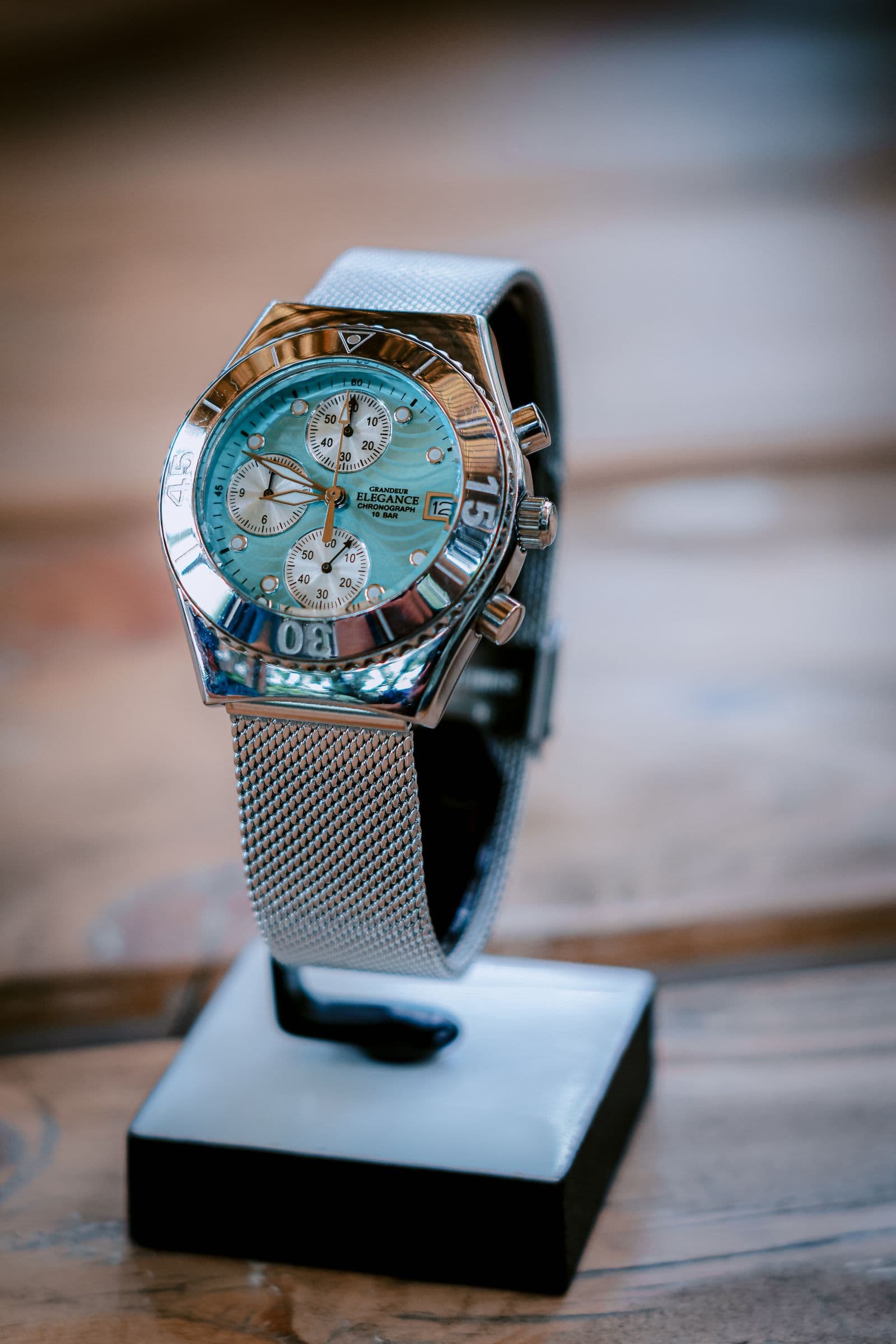
You uploaded a watch standing on an acrylic riser and got back a clean transparent PNG of the riser. Or the headshot came back with the stranger behind you cut out beautifully and your own shoulder sliced off. Run it again and you get the same thing.
That is worth naming precisely, because it changes the fix. The edge work did not fail. Your frame held more than one object that could reasonably be called the subject, and one of them got picked. Nothing a background remover reads out of a JPEG records which one you meant.
So the repair is not a hidden setting. It is to make the frame unambiguous before you upload, because nothing downstream can separate two objects the file never distinguished. The full removal walkthrough covers the rest of the process.
Look at the Frame the Way the Mask Does
Open the photo full screen and list every object a stranger could call the product. If that list has two entries, you have your explanation.
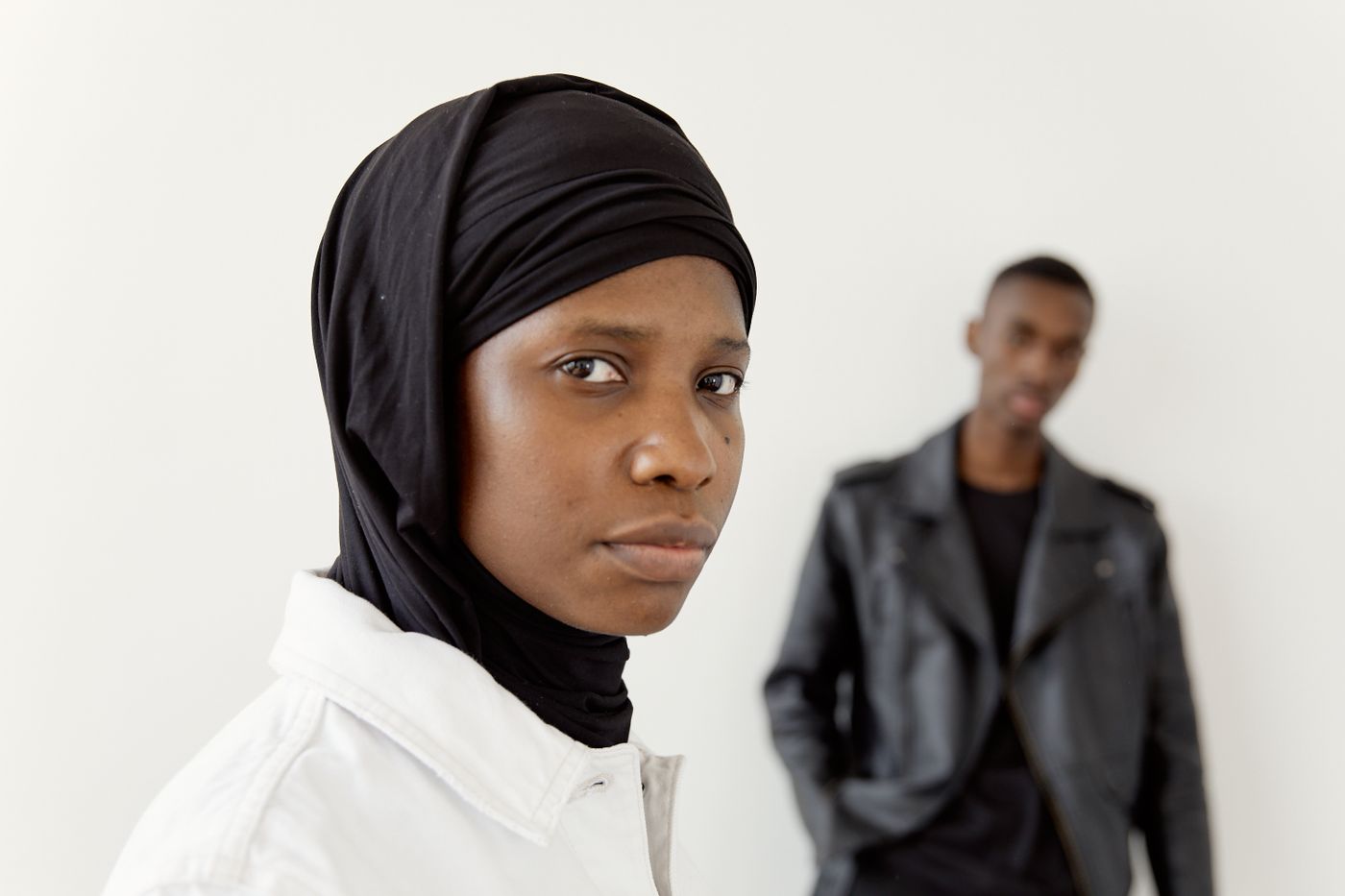
The object that wins is usually the one that is larger, more central, sharper, or better separated from the background — the same cues a person uses. A riser often outscores the product standing on it, and two objects that touch read as one shape, which is why the shoe comes back welded to its plinth.
The Frames That Cause It Most Often
These shots reliably produce a clean, confident cutout of the wrong thing.
- Stands, risers, docks and easels. Watches on cushions, shoes on plinths, earrings on a bust. The support touches the product and is often the bigger object.
- A second person. A group shot, or someone walking behind you during a portrait.
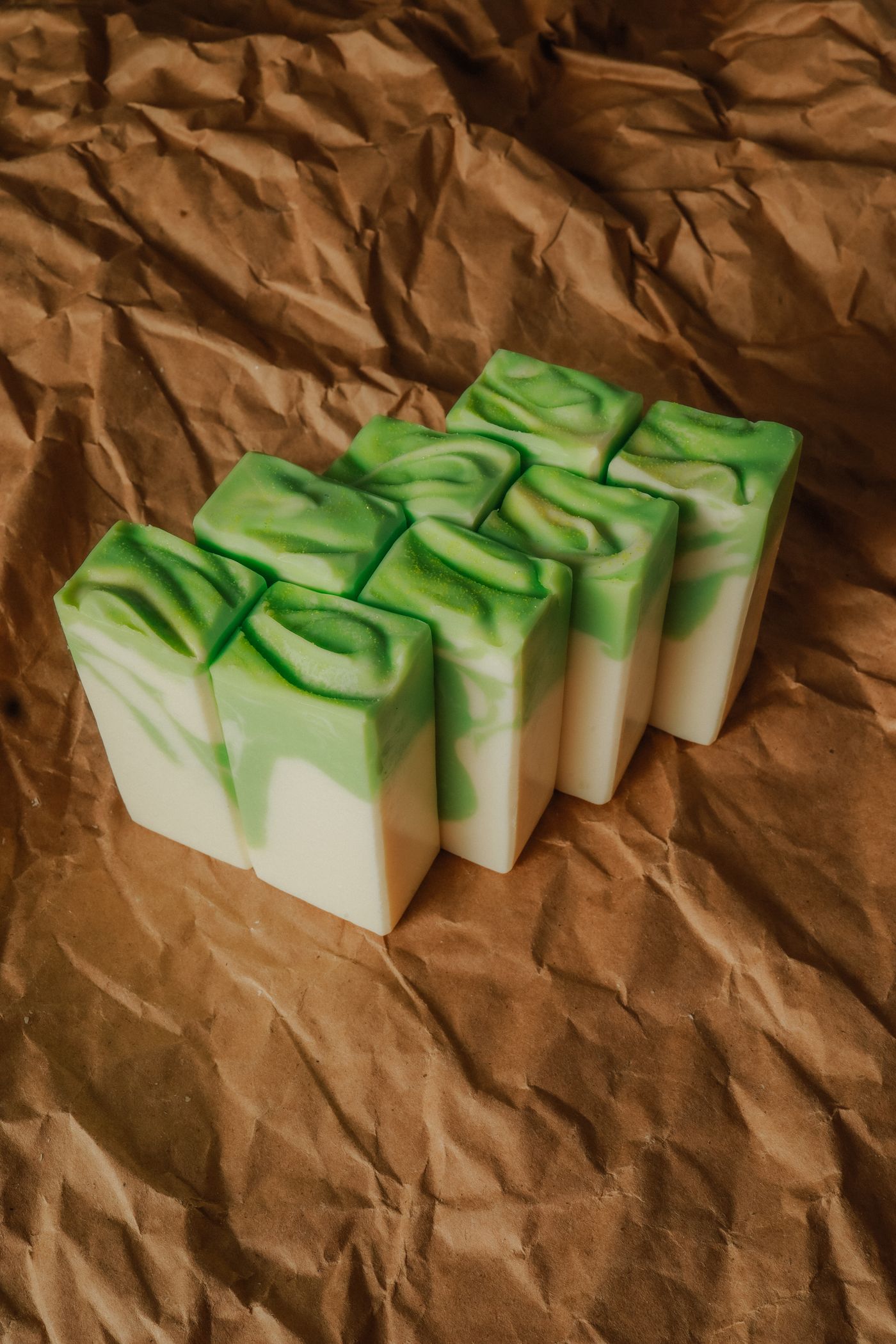
- Several items on one table. Four candles photographed together when only one is the listing.
- Mirrors and polished tabletops that hand the frame a second copy of the subject.
When the extra objects belong in the shot — a gift set, a bundle — arrange them so they read as one object: product sets and bundles covers that.
Crop to One Subject Before You Upload
This fixes most cases, and any photo app will do it. The editor's Canvas tool only reshapes the canvas to a preset ratio or export size; there is no crop rectangle you can drag around one object, so this step happens on your side.
- Crop so the intended subject and a small margin of background are all that remain — you are removing ambiguity, not pixels.
- Save as PNG, JPG or WebP, the three formats the uploader accepts. An iPhone still exporting HEIC needs converting first.
- Keep the file under 25 MB, which a crop usually handles by itself.
Selling platforms lean the same way. Among the best practices in Google's Merchant Center image guidelines, sellers are told "Don't include any product that's not sold together with the main product", and the framing is set separately: "Frame your product in the image space so that it takes up no less than 75%, but not more than 90%, of the full image." Those are recommendations rather than the minimum requirements that get an offer disapproved, but they are the standard to aim at: crop the riser out, and leave a band of background rather than filling the frame edge to edge.
Amazon's own selling blog, in a product-photo guide published in December 2024, tells sellers to "have the product fill 85% or more of the frame", so check Seller Central for the current requirement before you recrop a catalog. A crop also costs resolution, so confirm the result still clears your platform's minimum.
When a Crop Would Cut Into the Product
Sometimes the crop that removes the competing object would also cut the product: the riser sits under the watch, the other person overlaps your shoulder. There is no hand-fix for that inside remover.bg. The editor works on the finished cutout — background, position, shadow, canvas size — and has no brush for rubbing one object out of it.
Two things still work. Go back to the same shoot for a frame where the bystander has walked on or the product is lying flat; frames you rejected on composition often cut out cleanly. Failing that, reshoot the single object.
There is a deeper reason no eraser would help: whatever the unwanted object covered was never photographed. Remove a stand crossing the front of a shoe and a stand-shaped hole is left in the shoe. Once only the subject is left, changing the background behaves normally again.
Why Re-Running the Same File Changes Nothing
The habit worth breaking is uploading the same frame again and hoping. The file is the entire input, so a second upload has nothing new to work with, and each attempt spends a run for nothing.
Same principle as jagged cutout edges: what you upload decides what comes back, so the repair belongs in the file, not the retry.
Setting Up the Next Shot
One subject per frame. Props that do not touch the product. A visible band of plain background around whatever you intend to keep. When a shot needs a stand, take the styled version, then take one more with everything else moved away — that second frame is the one you upload.