























How to Add a Missing Person to a Family Photo
5 min read
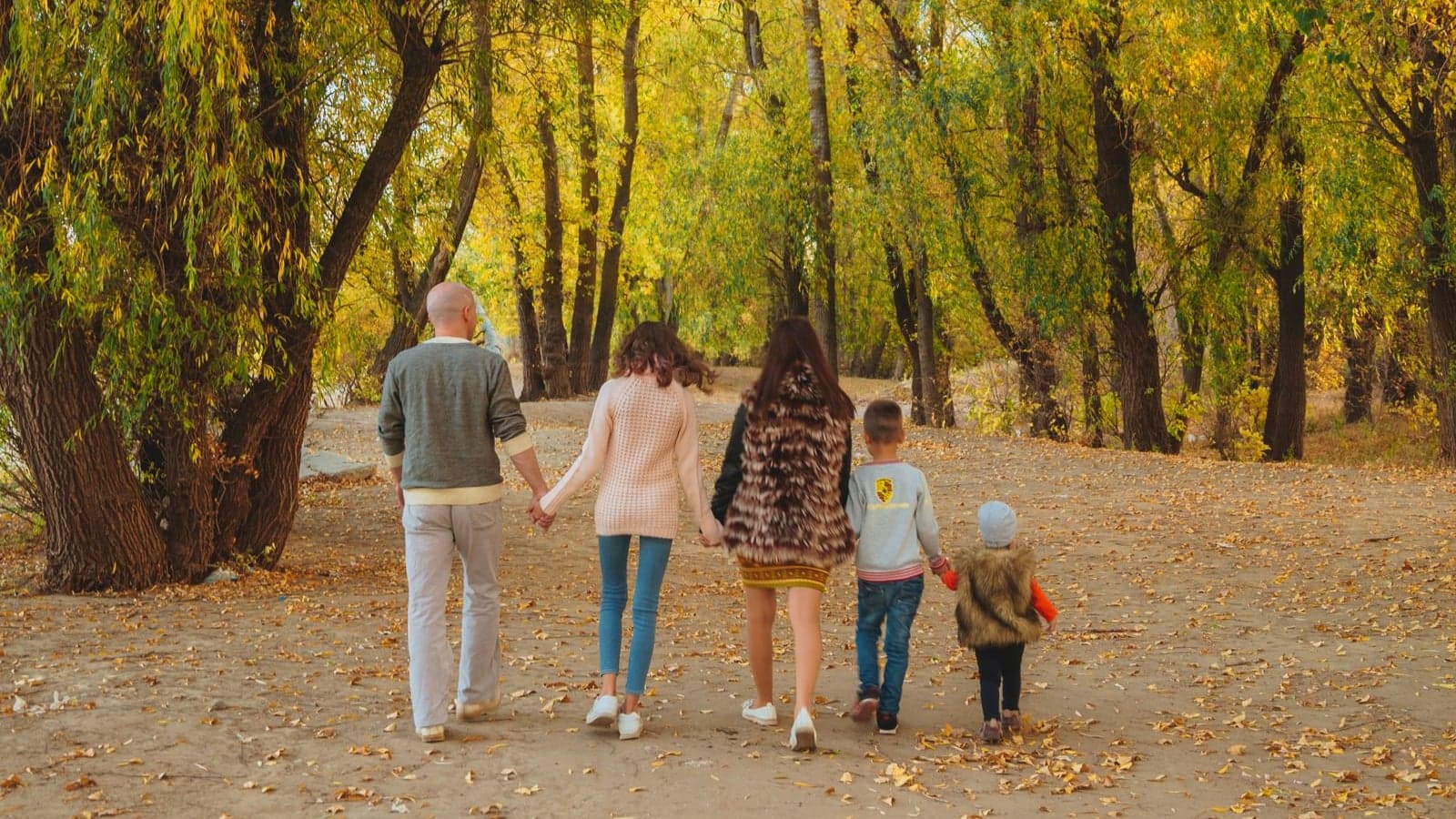
Add someone who missed the family photo: pick a matching source shot, cut them out, scale by head size, match the light, and know where it stops working.
Someone took the picture and is not in it. Someone could not travel, or was ill that weekend. Months later the family has one good group photo and one empty spot, and you would like to fill it.
It can be done with a cutout and a second photo. What makes it believable is rarely the editing. It is the choice of the source photo and a handful of small matches: size, ground line, light and colour.
This guide uses the editor in remover.bg, and it says where the method stops working.
Pick the right source photo of the missing person
Choose a photo for how well it agrees with the group photo, not for how flattering it is. Look at three things:
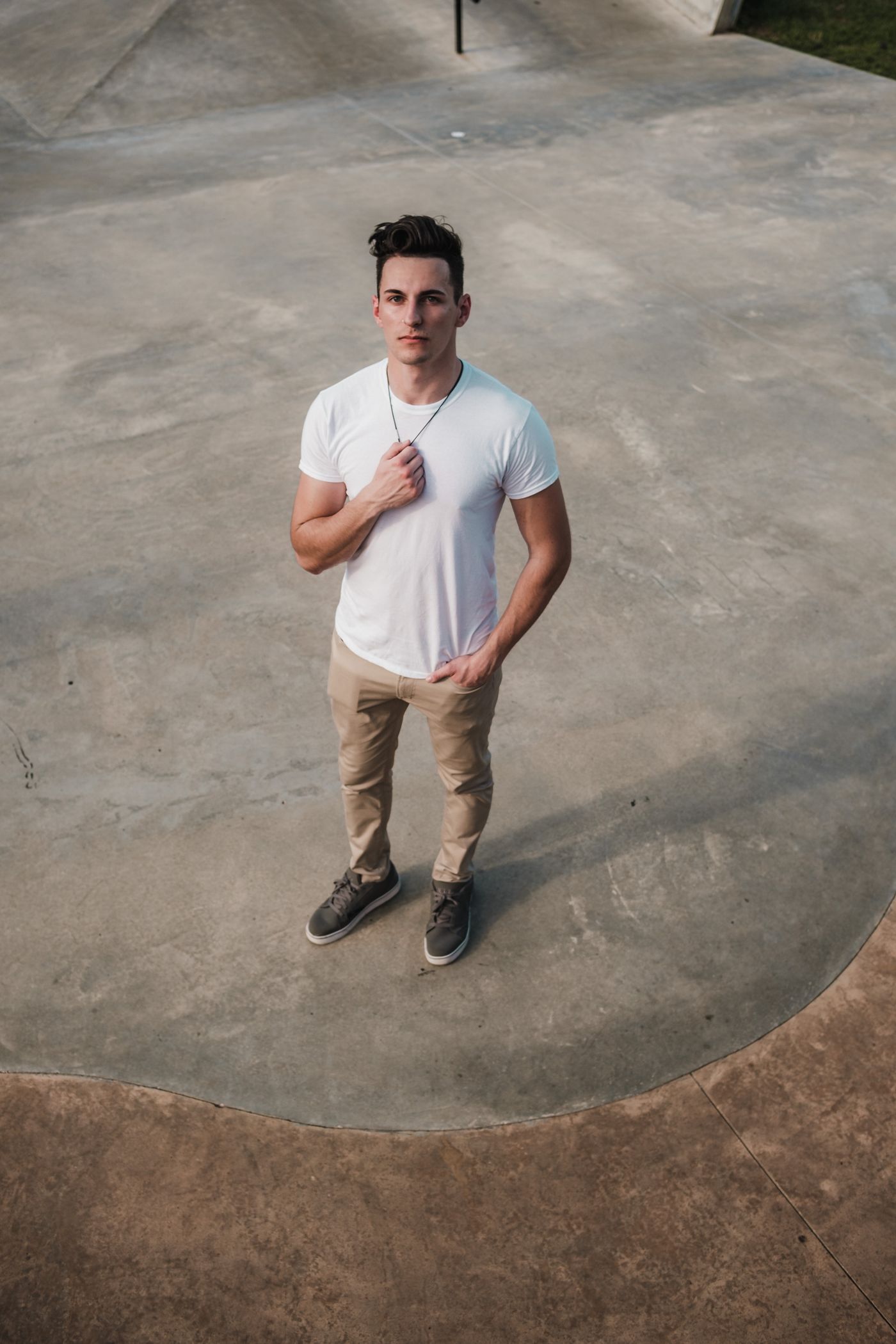
- Light direction. If the group stands in sun from the left, a person lit from the right will look pasted on, and nothing in the editor turns the light around.
- Camera height. A person photographed from above and a group photographed at eye level do not share a perspective.
- Distance. A close-up selfie has different facial proportions from someone photographed from a few metres away. A full-length or waist-up shot from a normal distance blends best.
Resolution matters too. A small or blurry source will look softer than everyone around it. Upload limits are 25 MB per file and 50 megapixels, and JPG, PNG and WebP are accepted.
Cut them out
Upload the source photo to remover.bg and let the cutout run. In the editor, open the Color tab, pick a dark colour and check the edges before you move on, especially hair and the outline of loose clothing. If hair is the weak spot, how to remove the background from hair and fur explains why it goes wrong and what to shoot differently.
If the source photo is itself a group shot and you only want one person, read can you cut one person out of a group photo first. It works best when that person stands apart from the others.
Scale by head size, stand them on the same ground
Open the Upload tab and add the group photo as the background. It is fitted to cover the canvas, and the canvas starts in the shape of the photo you cut out, so a different shape crops the group. Pick the canvas preset closest to the group photo, such as 3:2 or 16:9 for a landscape shot, then pan and zoom the background until nobody at the edge is cut off.
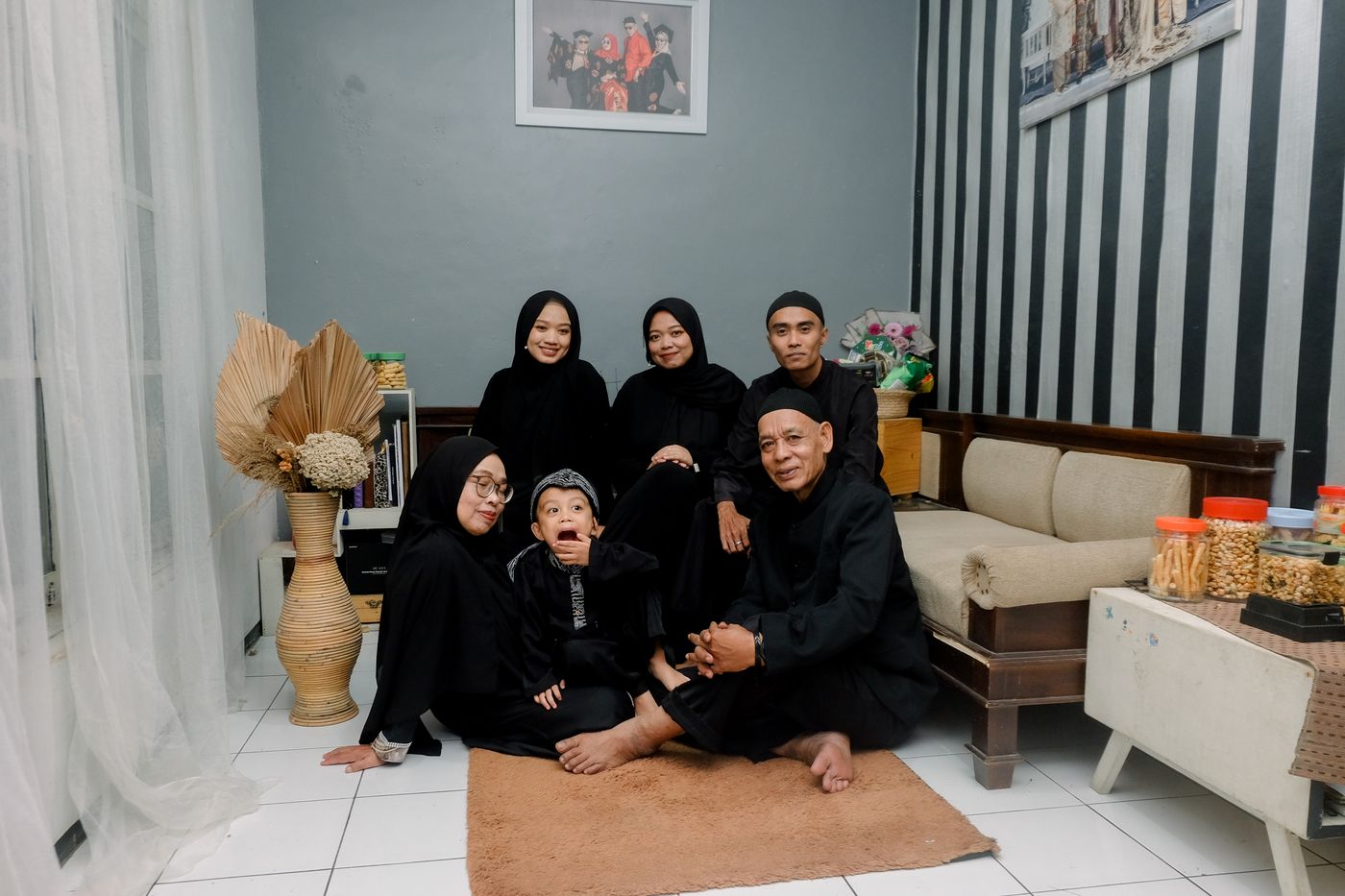
The missing person is the subject on top. Move, scale and rotate them into the gap. Do not eyeball the whole body. Compare the new head with the head of a neighbour who stands at the same distance from the camera.
Then check the feet. They should land on the same ground line as the people next to them: the same line of the floor, lawn or step. If the group photo cuts off the legs, move the new person down until the bottom edge of the picture cuts them at the same height.
Match warmth and brightness with Adjust
The Adjust panel works on the cutout only, which is what you need. Compare the person's skin with a neighbour's, then move Temperature until the warmth agrees and Brightness until the exposure agrees. Small moves are enough. Contrast and Saturation are there if the person still looks flatter or more vivid than the group.
If skin looks orange or grey against the scene, why your skin looks orange against the new background explains how to read that mismatch.
Add a shadow only if there is a floor to put it on
If the group stands on a visible floor or pavement, a soft drop shadow helps the person sit on it. Open the Shadow panel and keep it gentle: a small distance, a generous blur, and the angle that matches the other shadows in the photo. It is a manual shadow, set by eye. How to add realistic shadows covers the settings.
If there is no visible floor, such as a close crop or a plain wall, skip the shadow. A shadow with nothing under it looks worse than none.
What this cannot do
The cutout always sits in front of the background photo. The missing person cannot stand behind someone's shoulder or half hidden by an arm. Place them at the edge of the group or in a real gap.
The editor holds one cutout per document, so you insert one person at a time. For two missing people, export the finished result, cut out the second person, and upload that export as the background behind them. Export as PNG or JPG; JPG is fine for the final picture because it has no transparency.
It also cannot fix a poor match. If light, angle and sharpness disagree strongly, a different source photo is the answer.
If the person has died
Ask what the family wants before you start. For some, a picture with everyone in it is a comfort. Others would rather keep the photo as it was taken, and that is their decision to make.
If you go ahead, say plainly that it is a composite when you hand it over, and do not present it as a photograph from that day. Keep any caption factual.
- family-photo
- composite-photo
- background-removal
- photo-editing
- cutout
- upload-background
- gift-ideas