 English
 Español
 Português (BR)
 Deutsch
 Français
 Italiano
 Türkçe
 Bahasa Indonesia
 Русский
 日本語
日本語 한국어
한국어 Українська
 Tiếng Việt
 Polski
 Nederlands
 ไทย
ไทย Română
 简体中文
简体中文 繁體中文
繁體中文 العربية
 Български
 Filipino
 हिन्दी
 اردو
اردو বাংলা
বাংলাGoogle Shopping Image Requirements, Rule by Rule
Most Merchant Center disapprovals come from a sale badge, a corner logo or a thin grey border. The full spec, plus the 500x500 minimum enforced 31 January 2027.
- google shopping
- merchant center
- product images
- ecommerce
- background removal
- product feed
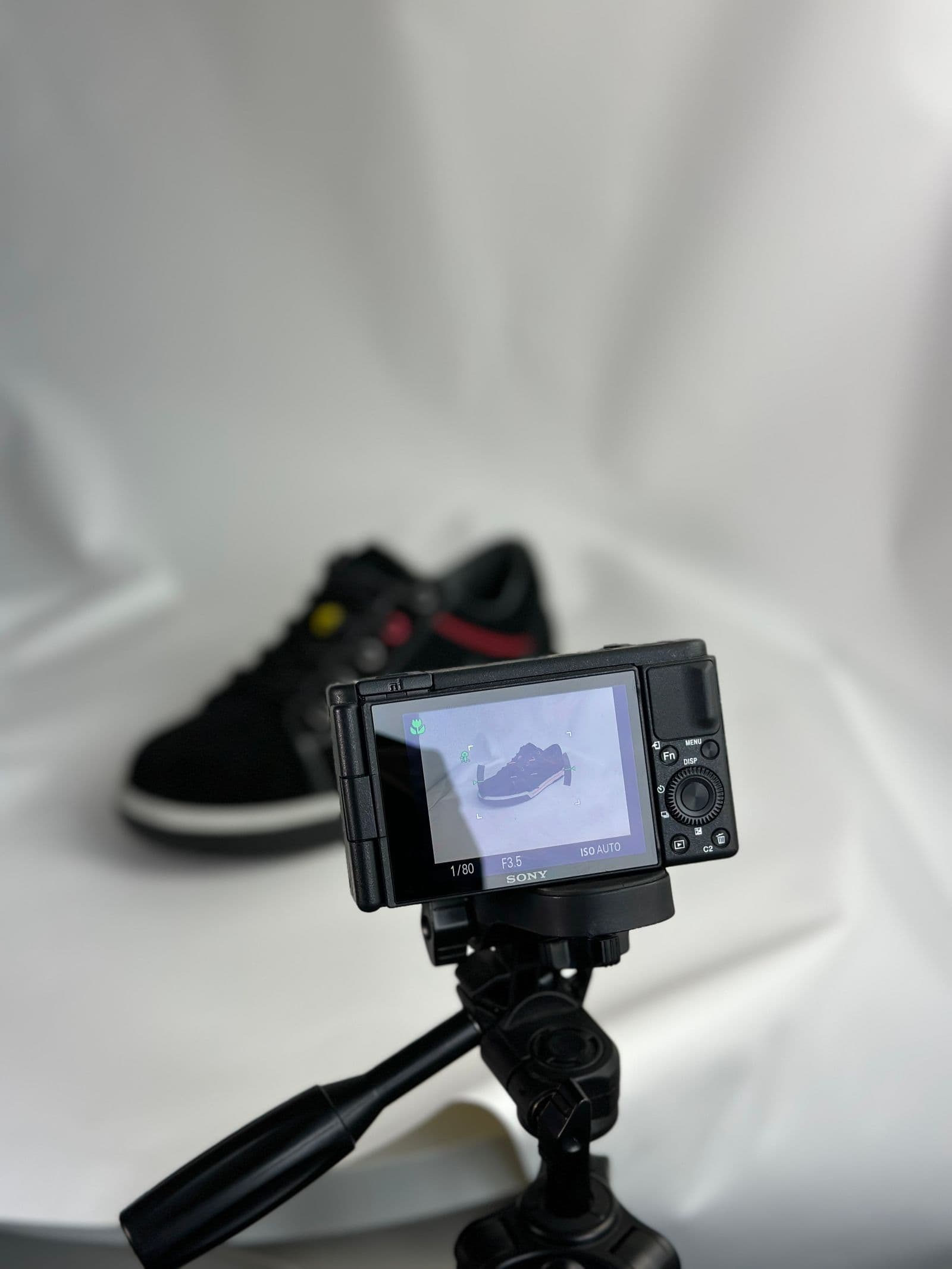
Most Merchant Center image disapprovals come from a short, repeatable list: a "SALE" badge burned into the JPEG, a store logo in the corner, a thin grey border from an old template. Google reviews the file itself, and a failing image disapproves that offer across Shopping ads and free listings. Because one export template usually sits behind a whole product line, a single bad file rarely stays a single problem.
The rules are published, specific, and recently changed. Google raised the stated minimum resolution for product images to 500 x 500 pixels, began surfacing "Image too small for upcoming enforcement" warnings in Merchant Center during 2026, and will begin enforcing the new size on January 31, 2027. Until that date the older disapproval thresholds still apply: 100 x 100 pixels for non-apparel and 250 x 250 pixels for apparel.
The main image spec, line by line
The numbers first:
- Minimum size: at least 500 x 500 pixels in Google's product data specification, with 1500 x 1500 or larger recommended.
- Maximum size: no image larger than 64 megapixels, and no file larger than 16 MB.
- Accepted formats: JPEG, WebP, PNG, non-animated GIF, BMP and TIFF.
- Framing: Google recommends the product fill no less than 75% and no more than 90% of the frame. Guidance rather than an enforced threshold, but it is what reviewers expect.
- Image URL: 1 to 2,000 characters, starting with
httporhttps, RFC 3986 compliant, with spaces and symbols URL-encoded.
That last point causes silent failures. Google has to fetch the file, so robots.txt must allow Googlebot and Googlebot-Image; a perfect photo behind a blocked directory is no photo at all. Variants are the other trap: Google raises "Same value for differing variants: image link" when two differing variants point at one file, so a second colourway needs its own image.
What gets a product disapproved
Overlay rules are where merchants lose the most SKUs. Google requires an unobstructed view of the product, which rules out:
- Promotional text such as calls to action, price information, or "free shipping" claims.
- Watermarks, brand names, retailer logos, or any other overlay on the product.
- Borders around the image.
- Placeholder images, "no image available" graphics, or generic illustrations instead of the actual product.
Merchant Center offers automatic image improvements, an opt-in automation that strips promotional overlays. Treat it as a safety net, not a strategy: it runs on Google's schedule, not yours.
Background: white, transparent, or staged
Google's best practice is a solid white or transparent background for the main image, because it holds up across the layouts Shopping surfaces use. Staged or lifestyle images that clearly show the product are also acceptable, and for apparel Google asks for products worn by people — our comparison of flat lay, mannequin and model shots covers what that means in practice.
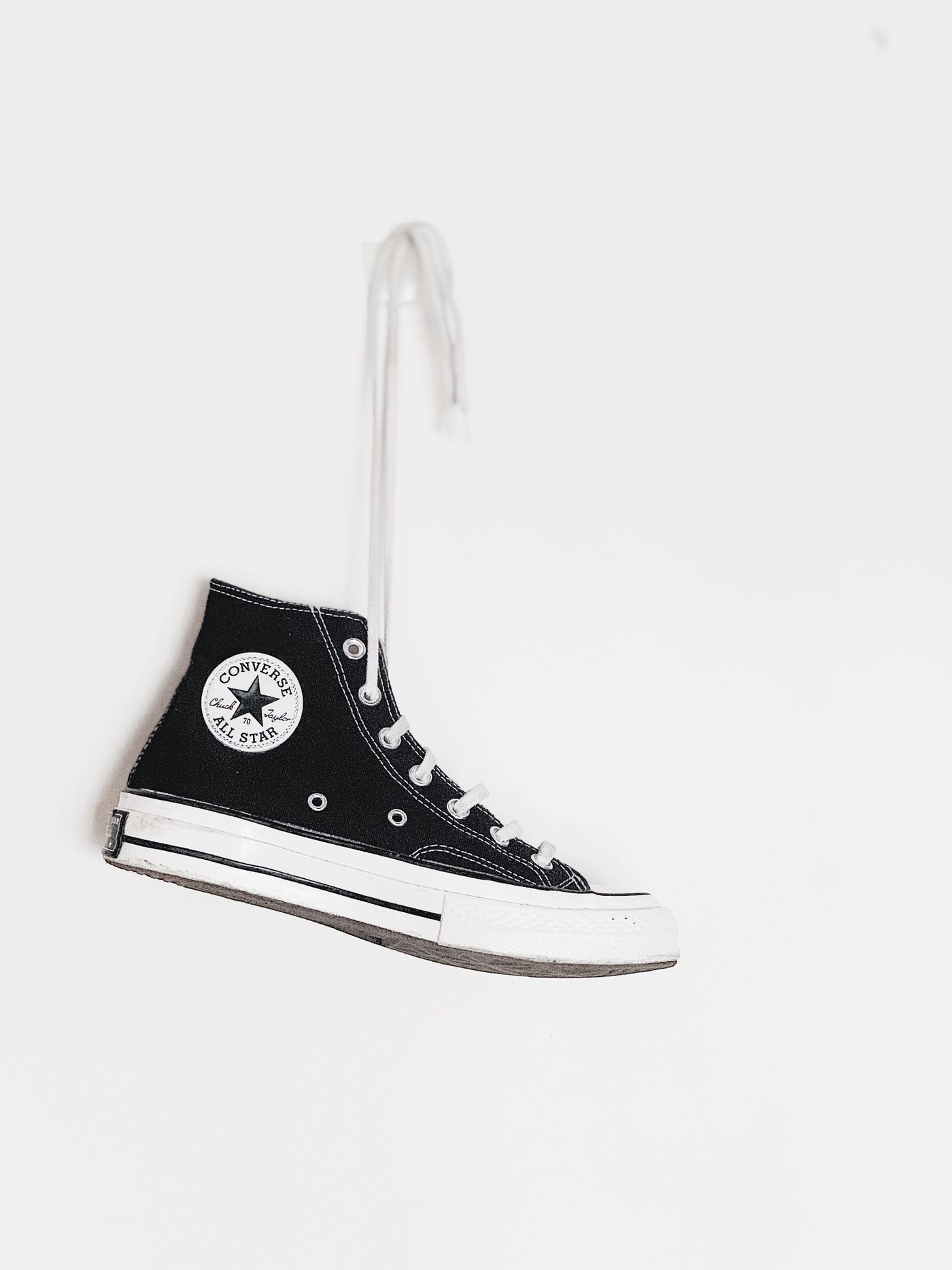
White or transparent is the safest default, with one caveat in Google's spec: avoid transparency for light-coloured products, because some surfaces render them against black. Flatten those onto solid white instead. Upload the original to remover.bg, let the cutout handle the edges, then export a transparent PNG or drop the subject onto flat white in the editor. Hair, fur and fine edges are where cheap cutouts fall apart, and a ragged halo of old background reads as low quality even when no policy line is broken. Our guide to transparent PNGs covers when transparency helps and when it does not.
One refinement: add a soft contact shadow so the product does not float. Google does not require it, but it stops white-background shots looking like clip art. Walkthrough in how to add realistic shadows to your photos.
Additional images earn the click
You can attach up to 10 values to additional_image_link. They must meet the same baseline requirements as the main image, but Google relaxes several restrictions. They may include staging, show the product in use, highlight one part, or show part of a bundle or an entire multipack.

Logos, watermarks, irrelevant text and blurry files are still prohibited. So: main image clean and neutral, additional images doing the selling with scale references and in-use context. If any imagery is AI-generated, Google requires the file to carry metadata saying so: the IPTC DigitalSourceType tag, holding a value such as trainedAlgorithmicMedia or compositeSynthetic. Most generators write it for you; the job is making sure your optimisation step does not strip it, and adding it yourself if the tool did not.
Fixing a disapproved catalogue
Export the affected products from the Needs attention tab, sorted by failure reason. Overlay and border problems usually trace back to one template; undersized images to one supplier feed or one thumbnail script, which is why dropshipping catalogue photos deserve their own pre-upload pass.
Reprocess a small catalogue by hand. For thousands of SKUs, script it: our background removal API is the route for bulk work, so one job can pull originals, get transparent cutouts back, flatten them onto white on your side, and write new URLs into the feed. WebP is on Google's accepted list and usually the smallest common format, which helps when your CDN is straining. More in WebP support.
Before your next feed upload
Three checks catch most of it: does the product fill roughly three-quarters to nine-tenths of the frame, is the background clean and free of overlays or borders, and is the file comfortably above 500 x 500. Then fix the template that produced the bad file, not just the file, so the same disapproval stops arriving with every new SKU.