






















Can You Remove the Background but Keep the Shadow?
5 min read
The shadow in your photo leaves with the background. Here is what replaces it, how to spot a leftover patch, and when to skip the cutout entirely.
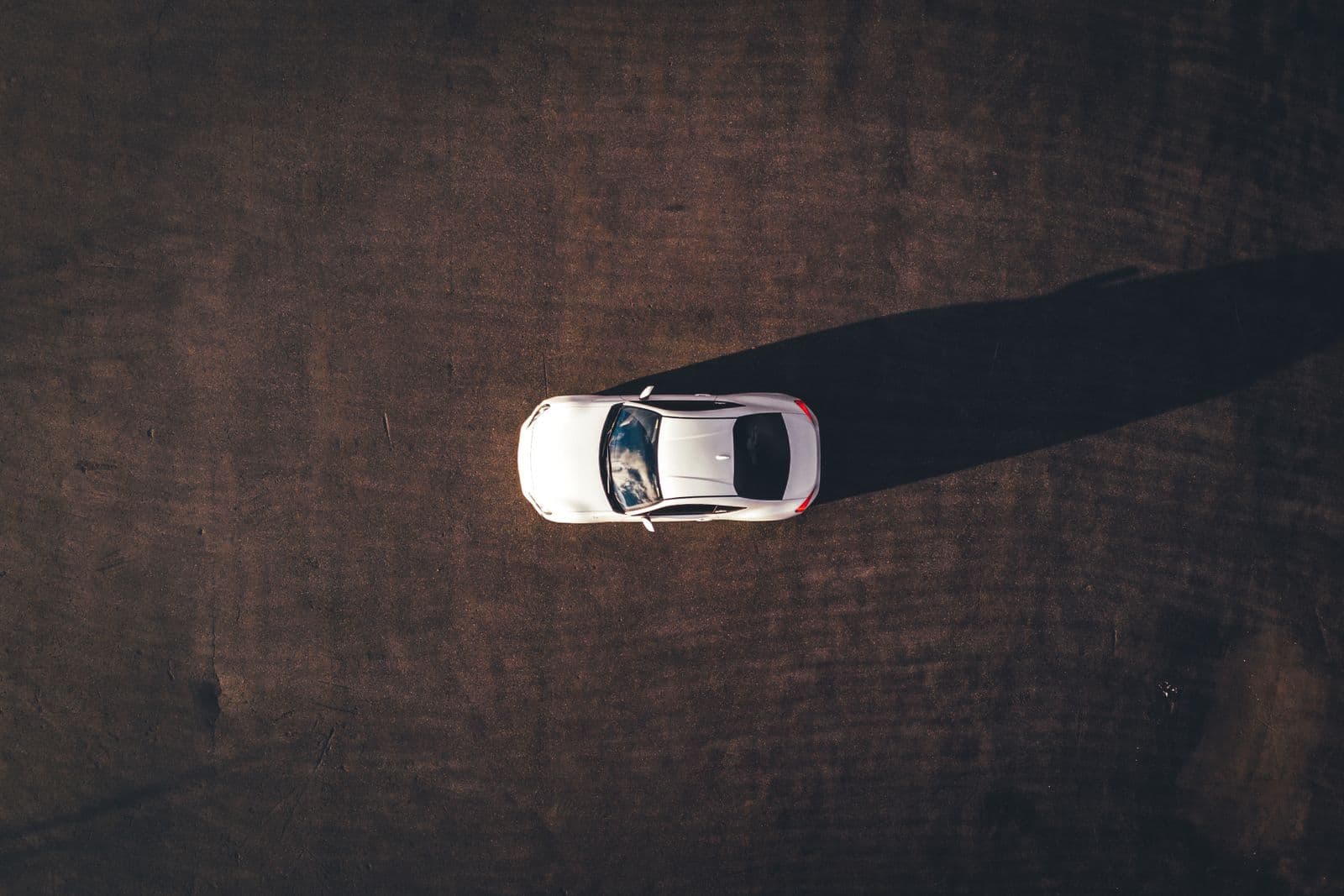
You photographed a product or a car in strong light, the shadow looked good, and now you want the background gone but the shadow kept. The shadow from your photo cannot survive as it was, because it is not a separate object. It is part of the background.
What you can get is a replacement: a new, soft shadow generated for the cutout. This article covers why the original leaves, where the replacement can be switched off, how to check it, how it looks on each background, and when to skip the cutout.
Why the original shadow leaves with the background
A shadow is the floor, table or wall in your photo, made darker where the subject blocks the light. Every shadow pixel is a pixel of the old surface, only darker.
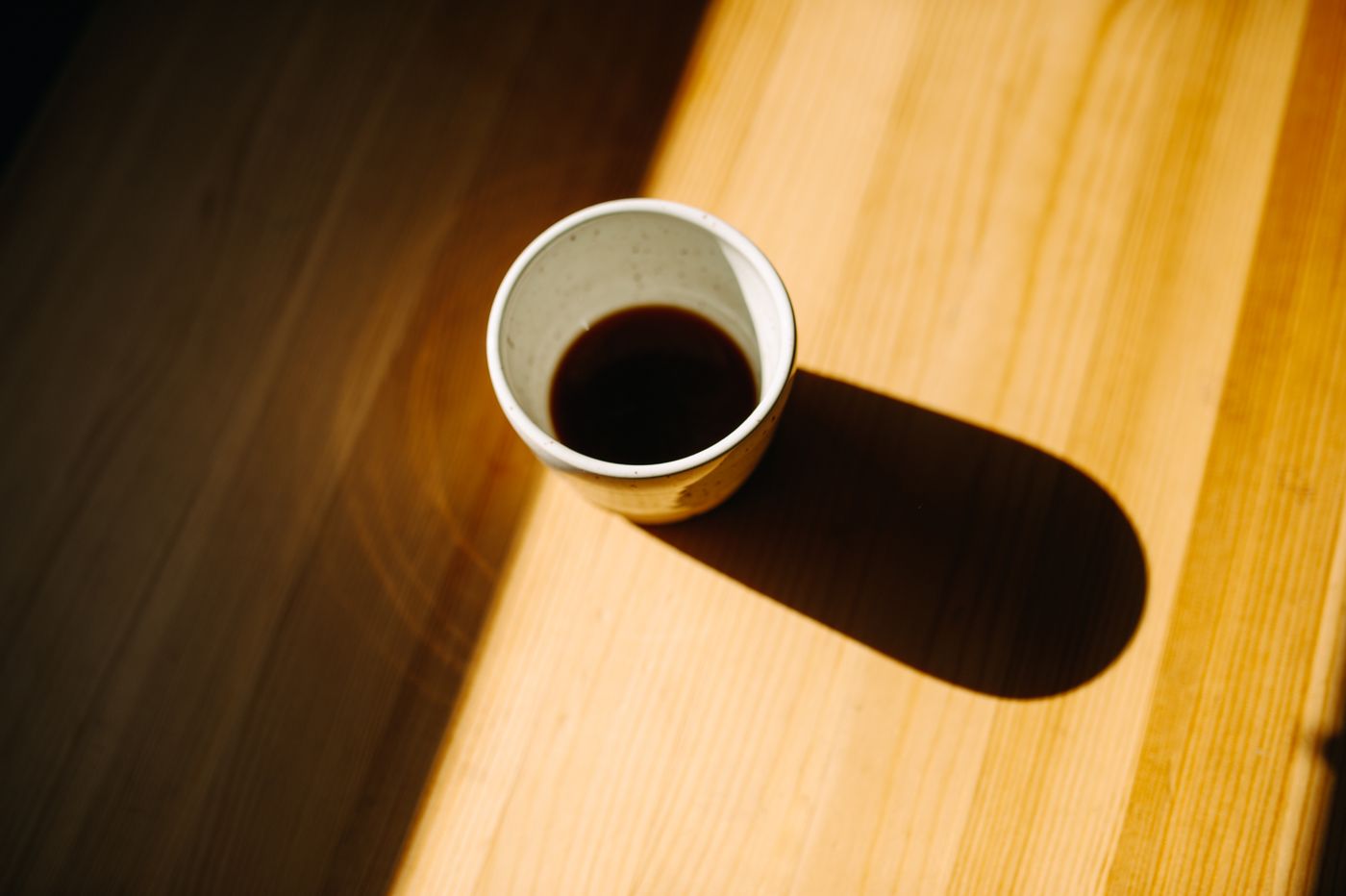
Background removal decides which pixels belong to the subject and which belong to everything else, and the darker patch on the floor belongs to everything else. If a cutout kept it, you would carry a piece of the old surface into the new image: a grey shape with a sharp edge that matches nothing behind it.
What comes back instead
remover.bg gives you a generated shadow. In the web app and the mobile app, results come with a soft shadow created by an AI model. It follows the subject's shape and where the subject meets the ground. There is nothing to tune by hand, and the apps have no switch to turn it off.
Only the HTTP API can leave the shadow out. Its shadow parameter takes auto, the default, or none, which returns a cutout with no shadow; the API documentation lists it. Use none when you will add your own shadow later.
The shadow is part of the image's transparency. The PNG specification describes each pixel's alpha value as its degree of opacity, so a shadow can be made of dark, partly see-through pixels that fade out and let any background show through.
The shadow is generated, not copied, so do not expect the direction and length of your original shadow to be reproduced; compare the two before you export. Also, when the subject does not touch the ground, for example a portrait cropped at the chest, there is no visible contact point, so look closely at the result.
How to recognize a leftover patch
The AI keeps whatever it reads as part of the subject, so a dark area at the base can come through as a piece of the old surface. Check before you export: open the editor's Color tab, choose a strongly saturated color such as bright green, and look at the base of the subject.
- A generated shadow is a darker, soft version of your color that fades out gradually and stays attached to the base.
- A leftover patch is grey or off-color, often with a sharp edge, and does not blend with the new color.
The reliable fix is a better source photo, shot in softer light so the shadow's edge is less sharp.
How the shadow behaves on each background
The generated shadow travels with the cutout onto whichever background you choose; what changes is how it looks.
- Transparent: the shadow is kept as partly transparent pixels that darken whatever sits behind them.
- Color and Gradient: the shadow darkens your color. On a very dark color there is little left to darken, so expect it to be hard to see.
- Images and Upload: the shadow is generated from the subject's shape and where it meets the ground, not from the background photo. If the background has a different camera angle or light direction, the shadow can fail to match the scene. The checks in how to change the background of a photo cover this.
- Blur: the background is your own photo, blurred, so check whether the old shadow still shows as a soft dark patch next to the new one.
The web editor also has a separate drop shadow with an on/off switch and controls for color, opacity, blur, distance and angle. Two shadows that point in different directions look wrong, so compare before you export. The guide to adjustable shadows explains each control.
When to shoot on the final surface instead
Sometimes the photographed shadow is the reason for the picture.
- A long, hard shadow from low sun. The generated shadow is soft, so do not expect it to reproduce this. The article on hard and soft light explains when sharp-edged shadows are worth keeping.
- A shadow used as a design element, such as window light on a wall behind a vase. The wall and the shadow are the picture.
- A car on the real ground where it will be sold. That shadow is already the real one; cut the car out only when you need a different setting, as described in removing the background from car photos.
Keep the photo or cut it out
If removing the surface would lose what you like about the photo, keep it. If the shadow was only a side effect of the light, remove the background and let the generated shadow keep the subject from looking as if it floats.
- background-removal
- shadows
- product-photography
- car-photos
- api